Running several clubs as one organisation
An organisation is how the people who run more than one club do it from one place. Here is what that gives you, and what it deliberately doesn't.
What an organisation admin can do
You are a full admin of every club in the organisation — the same as each club’s own admin, in the Club Hub, Team Hub and Facilities. That includes clubs created in the organisation after you were given access.
Each club’s own admins can see that you run it: the organisation’s admins are listed on the club’s People page. They can’t remove you there, because your access comes from the organisation, not from the club.
What stays with each club
- Money. Each club pays for what it uses, and each club is paid for its own bookings.
- People. Players, guardians and staff belong to a club, not to the organisation.
Opening a club
Clubs lists every club in the organisation. Choose one to open it in the Club Hub.
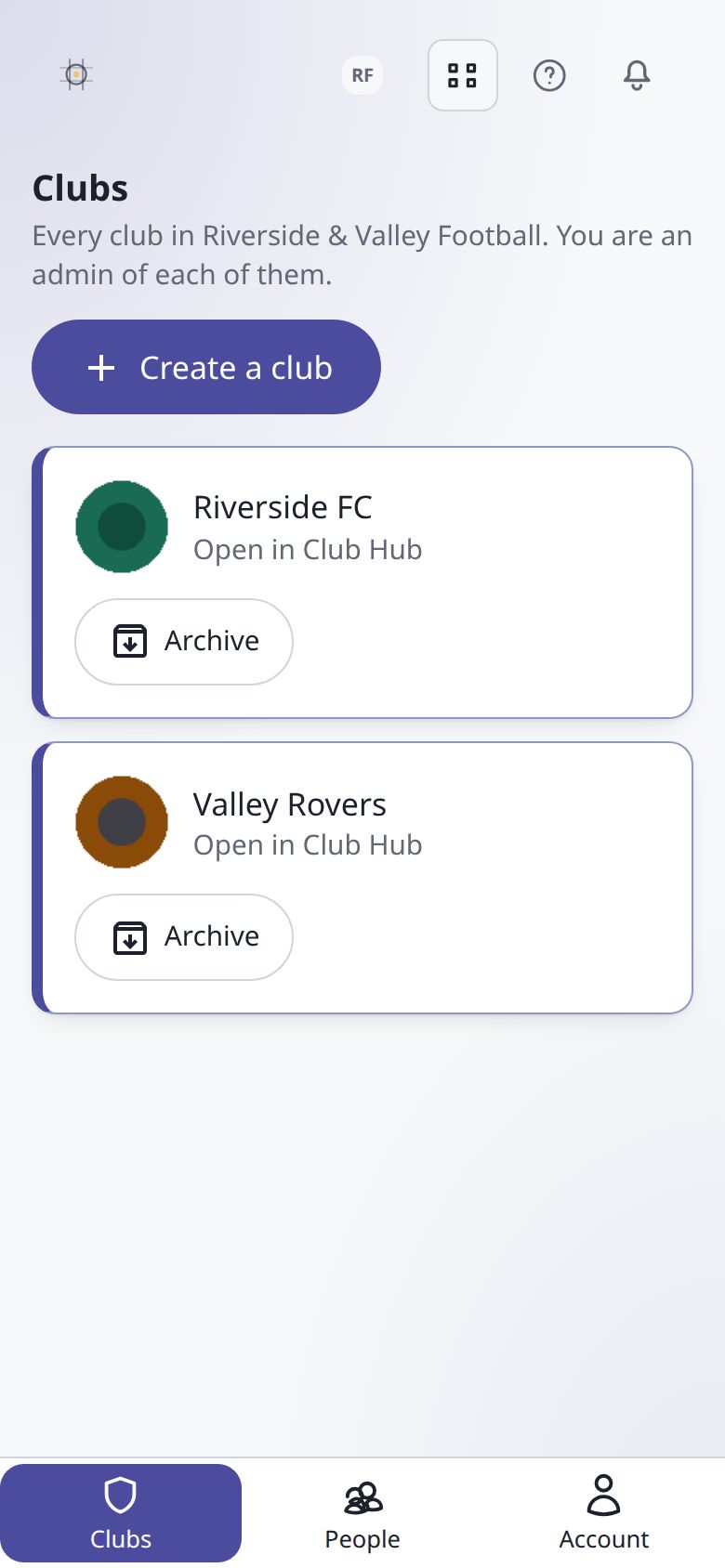
Creating a club
- Open Clubs and press Create a club.
- You’re taken to your lekkin sign-in page, where every club is created, with this organisation already chosen.
- Give the club and its first team a name. You become its admin.
Archiving a club
Archiving closes a club that has stopped. On Clubs, press Archive on the club. Before anything happens you’re told exactly what it does:
- If the club pays for pitch booking, that is stopped.
- Its future pitch bookings are cancelled, and each hirer is emailed. Anyone who has paid is owed a refund, which the club makes by hand from its own Stripe dashboard. The club’s admins and the organisation’s admins are emailed the list, and it’s shown on screen too.
- It leaves everyone’s list of clubs, and its join link and booking page close.
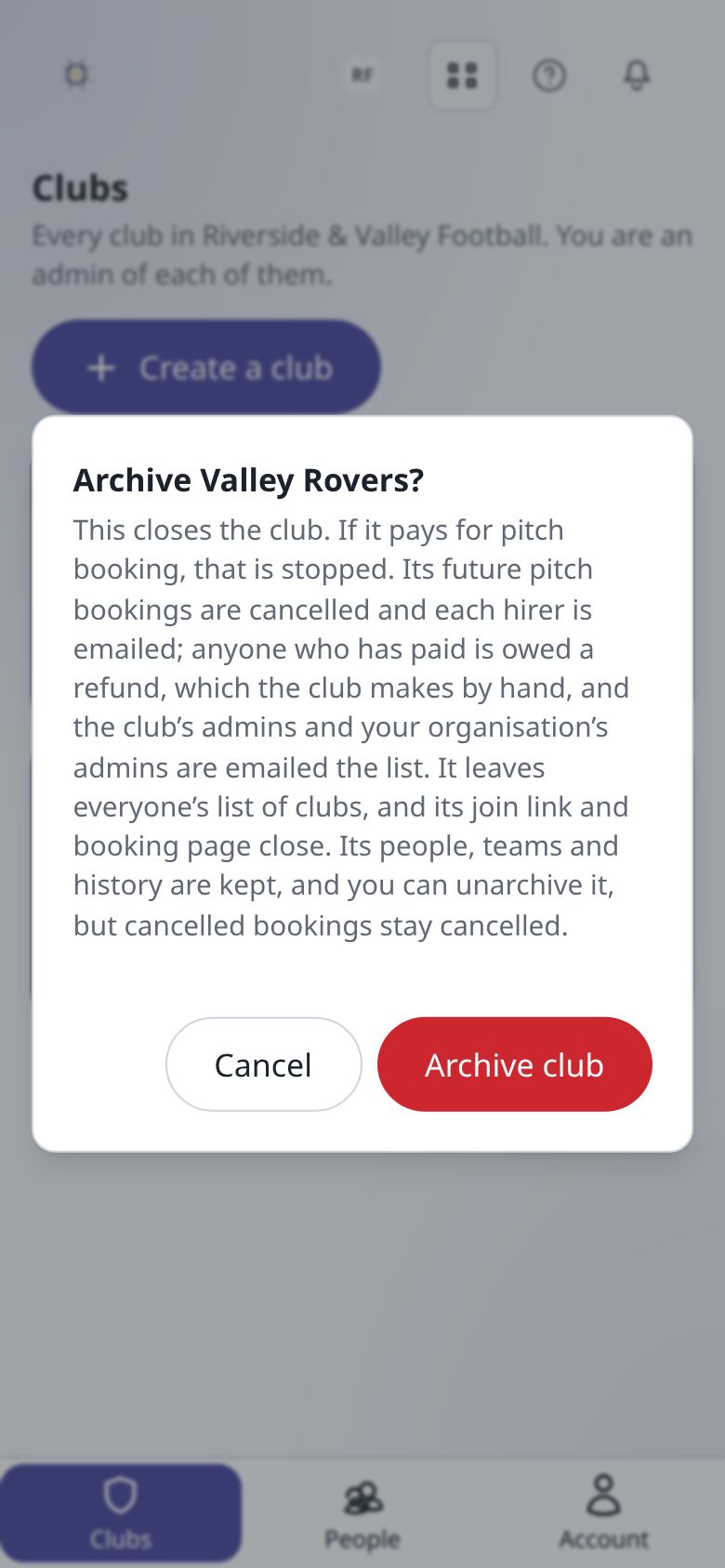
Its people, teams and history are kept. If something can’t be stopped, the club stays open and you’re told what went wrong; whatever was already done stays done, and trying again picks up the rest.
Archived clubs are listed under Archived. Press Unarchive to open one again. Pitch booking, and any bookings cancelled when it was archived, stay cancelled and have to be set up again.
Giving somebody else admin access
- Open People and press Give admin access.
- Choose the person. You can choose anybody one of your clubs already knows — a player, a member of staff, or somebody with a role there.
- They’re now an admin of every club in the organisation.
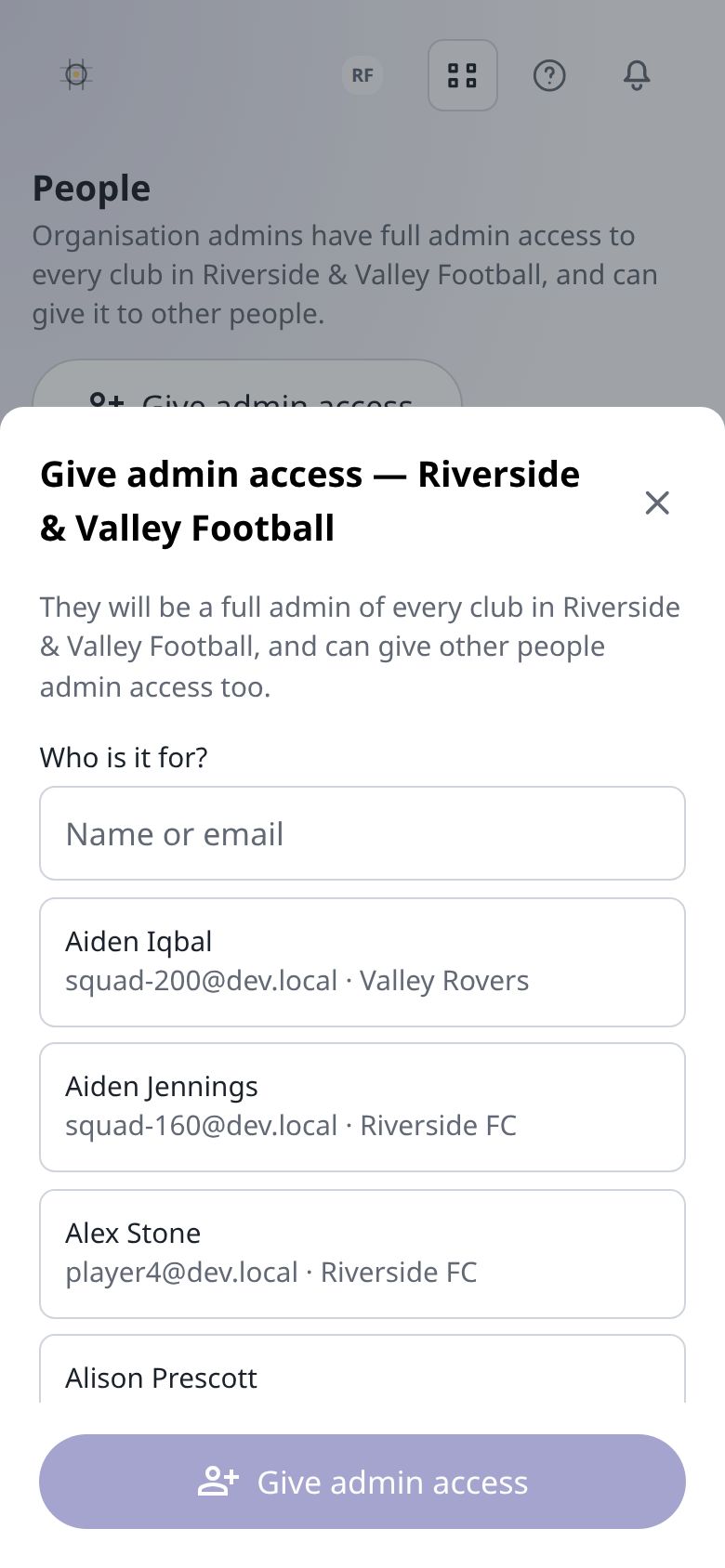
Somebody new to all of your clubs needs adding to one of them first, in the Club Hub.
Taking access away
On People, press Remove access beside them. Two things are refused, on purpose: you can’t remove your own access, and the last admin can’t be removed. An organisation with nobody to run it would leave its clubs unreachable through it, so add somebody else first.