When you play, and saying if you can
The Player Hub shows when and where you play, and lets you tell your team whether you can make it. A guardian does the same for the player they act for.
Getting in
You don’t sign up to the Player Hub yourself. Your club brings you in, in one of two ways:
- An invitation. Your club invites you, or invites you as a player’s guardian, and we email you. If you’re new to lekkin you set a password. If you already have a lekkin account, sign in and accept with it.
- A join link. Your club shares a link or a QR code. Fill in the form and confirm your email address. The club then decides whether to add you, and if it does, you get an invitation.
After that, sign in on the lekkin sign-in page and open the Player Hub.
Before you start: your club’s questions
When your club is waiting for answers, the Player Hub asks for them before it shows you anything else. That happens when you first join, and again if your club changes its code of conduct. If you’re a guardian, you answer for each player you act for, one at a time.
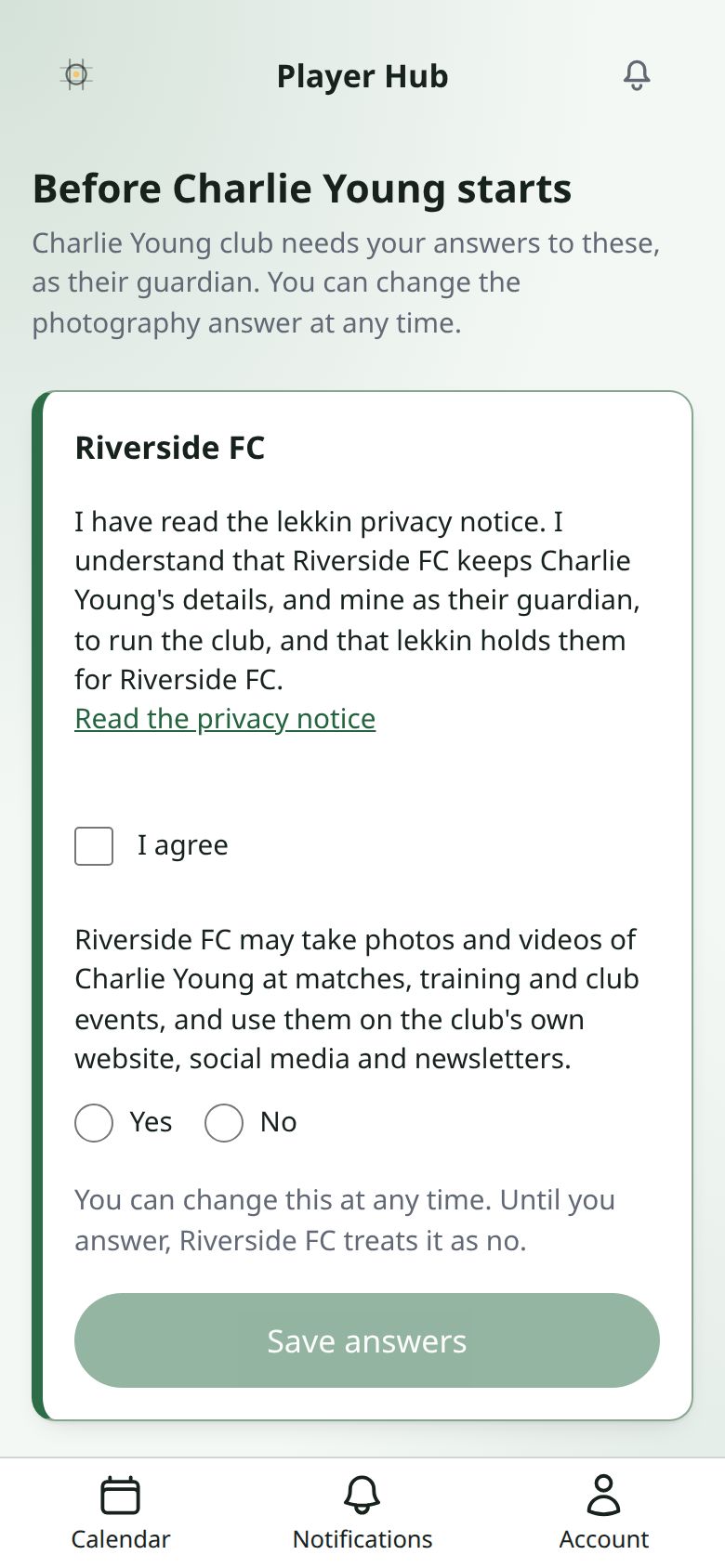
- Privacy notice. You confirm you’ve read it.
- Photos and videos. Yes or no to the club taking photos and videos at matches, training and club events, for its own website, social media and newsletters. Until you answer, the club treats it as no.
- Code of conduct. Only if your club has one. You confirm you’ve read it and agree to follow it.
Press Save answers, then Continue.
You can change the photography answer at any time. On the calendar, press Consents on the player’s card, change it, and press Save answers.
Your calendar
The first page shows a card for each person you can see:
- You, if you play;
- each player you’re a guardian for, by name.
Each card names the teams they play for, with the club’s name in front. Press See your calendar, or See their calendar, to open it.
If a card says Not in a squad yet, the club hasn’t added them to a team. Get in touch with the club.
If the page says your club hasn’t linked you to a player yet, that’s something only the club can fix.
What’s in the calendar
Matches, training and other team sessions, all together in date order. You see from a month ago to a year ahead. Switch between list and calendar. In the calendar, tap a day to see what’s on.
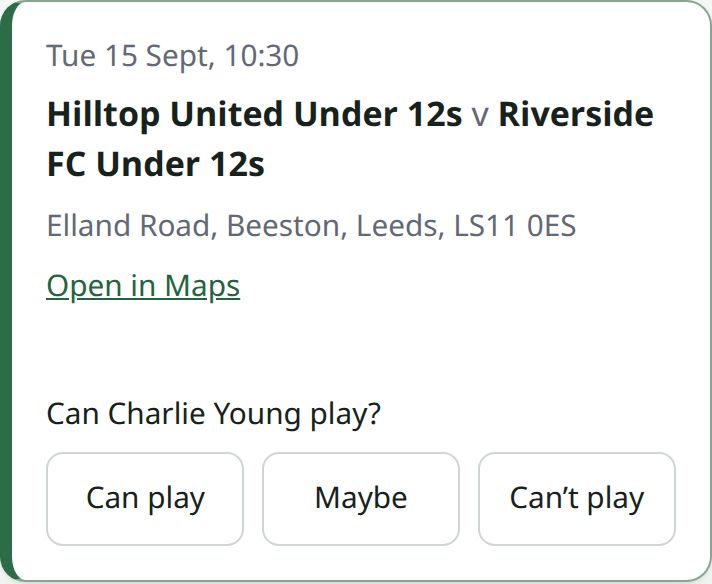
Each match shows:
- the kick-off, or Date to be confirmed;
- both teams;
- the ground’s address and Open in Maps, or Venue to be confirmed.
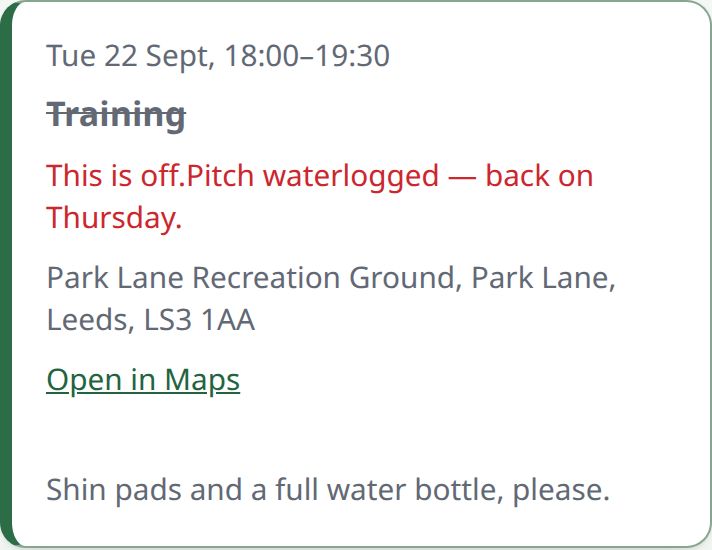
A session shows its day and times, what it is, where, and any notes from the team. If it’s been called off it says This is off, with the reason if one was given.
Saying whether you can play
On a match, under Can you play?, press Can play, Maybe or Can’t play. For a session it’s Can you make it?, with Can make it, Maybe or Can’t make it.
Your answer saves straight away, and your team’s manager sees it. You can change it whenever you like by pressing a different answer.
If you’re a guardian, the question names the player, for example Can Sam play?, and your answer is for them.
You can answer for a match that’s scheduled or postponed. Once it’s been played or called off, the question goes away. If an answer doesn’t save, you’re told, and nothing is changed.
Your account and notifications
Notifications in the menu shows messages from your club. Account has Notification settings → to choose what we email you about, Manage your account → to change your name, email or password, and Sign out.