Putting training in the calendar
Set up a weekly session once, change a single week without disturbing the rest, and call one off so nobody turns up to an empty car park.
A one-off session
On Sessions, press New session and leave it on One session. Choose the Kind — Training, a friendly, a meeting, something social or other — so your squad knows what they’re turning up to. Add a Name if you want one, the Date, when it Starts and Finishes, and any Notes, then press Add session.
There’s no box for where it is. If the squad needs telling, put it in the notes.
A weekly pattern
- Press New session and choose Repeating.
- Pick Which days, the First week and Until, How often (every week, or every 2, 3 or 4 weeks), and the times it Starts and Finishes.
- Press Add sessions. Every session in the schedule is created as a real entry, so you can change any one of them later without unpicking the rest.
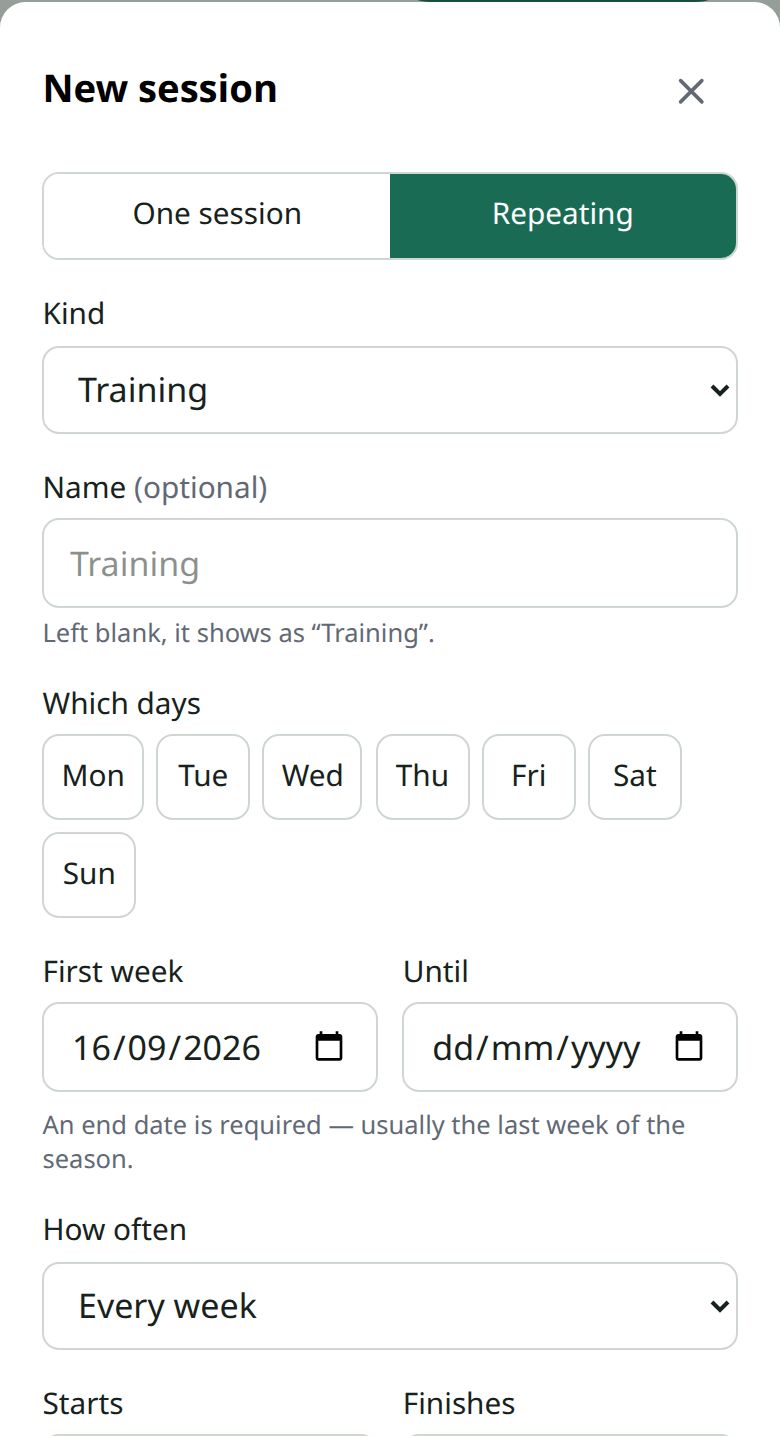
A schedule needs an end date. Pick the end of the season if you’re not sure — it’s easier to extend than to explain to a parent why training is in the calendar until 2031.
Changing one week
Open that session and press Edit. Because it’s part of a repeating schedule, you’re asked Change which? Choose Just that day. “Just this week we start at 7” is an ordinary edit and doesn’t touch the rest.
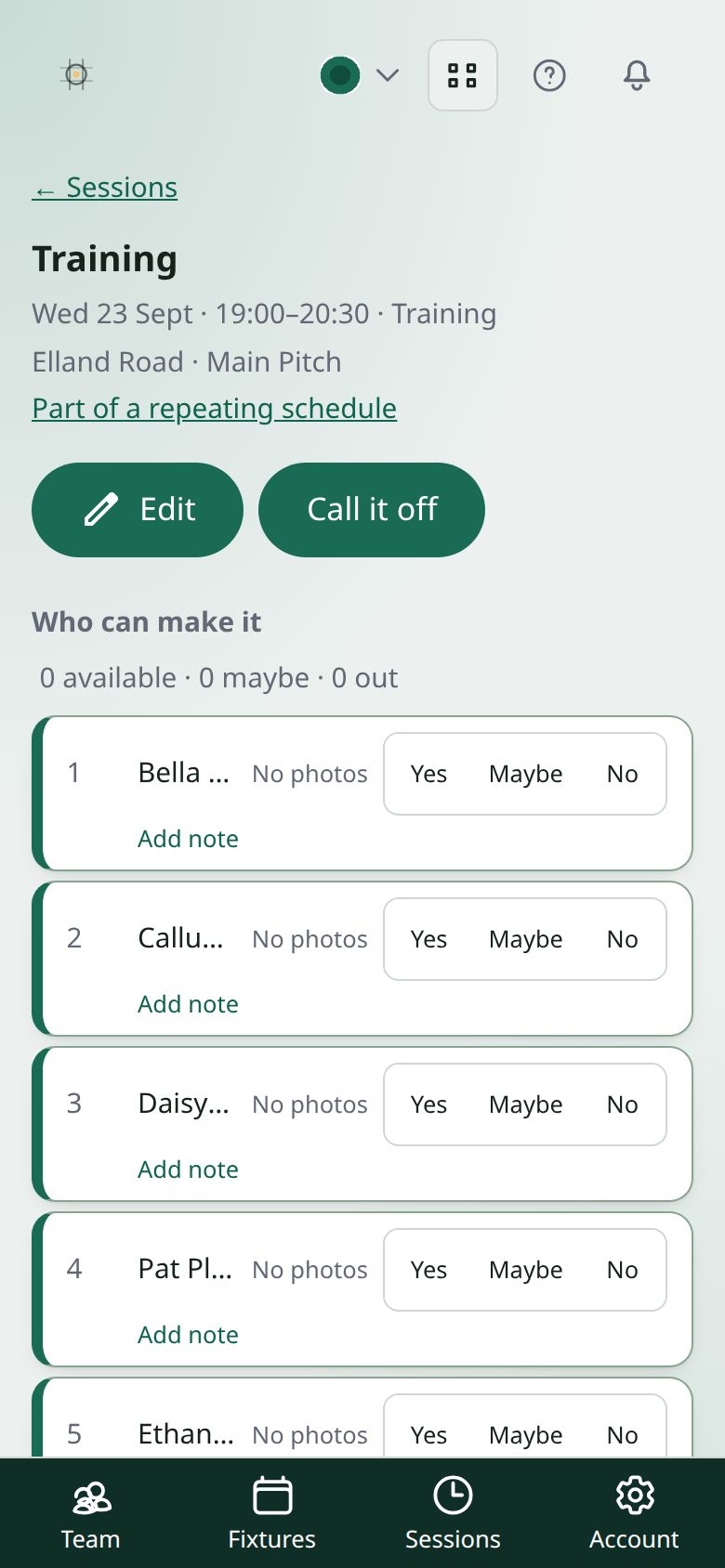
Choose This one and every one after it to change the times from that date onwards. Sessions before it keep their times, so what people were actually asked to attend stays on record.
What happens when you move one
If you change the date or time, everyone’s answers for it are cleared, and the squad is told it has moved and asked to answer again. You’re warned before you save. Somebody who said yes to Tuesday at six hasn’t said yes to Thursday at eight, and quietly keeping their answer would put them down for a session they never agreed to.
Changing the name or a note doesn’t clear anything, and nobody is messaged about it.
Calling one off
Open the session and press Call it off. For a repeating session, choose just that day or that one and every one after it. You can give a reason. The squad is told it’s off, with your reason, and the session stays in the calendar as off — so somebody looking at their week sees that it’s off, rather than finding a hole where it used to be.
To stop a whole schedule, open it and press End this schedule. It calls off every session still to come and keeps the ones that have already happened.