Your account, and who can get into your club
Your own account lives in one place for every lekkin app. Who else can get into your club is decided by your club admins, on the People page.
Your account
Open Account. On a phone it’s in the bottom bar. On a computer, press your name at the foot of the side menu.
It shows the email you’re signed in with and your name, then Manage your account →, Appearance, Notification settings → and Sign out.
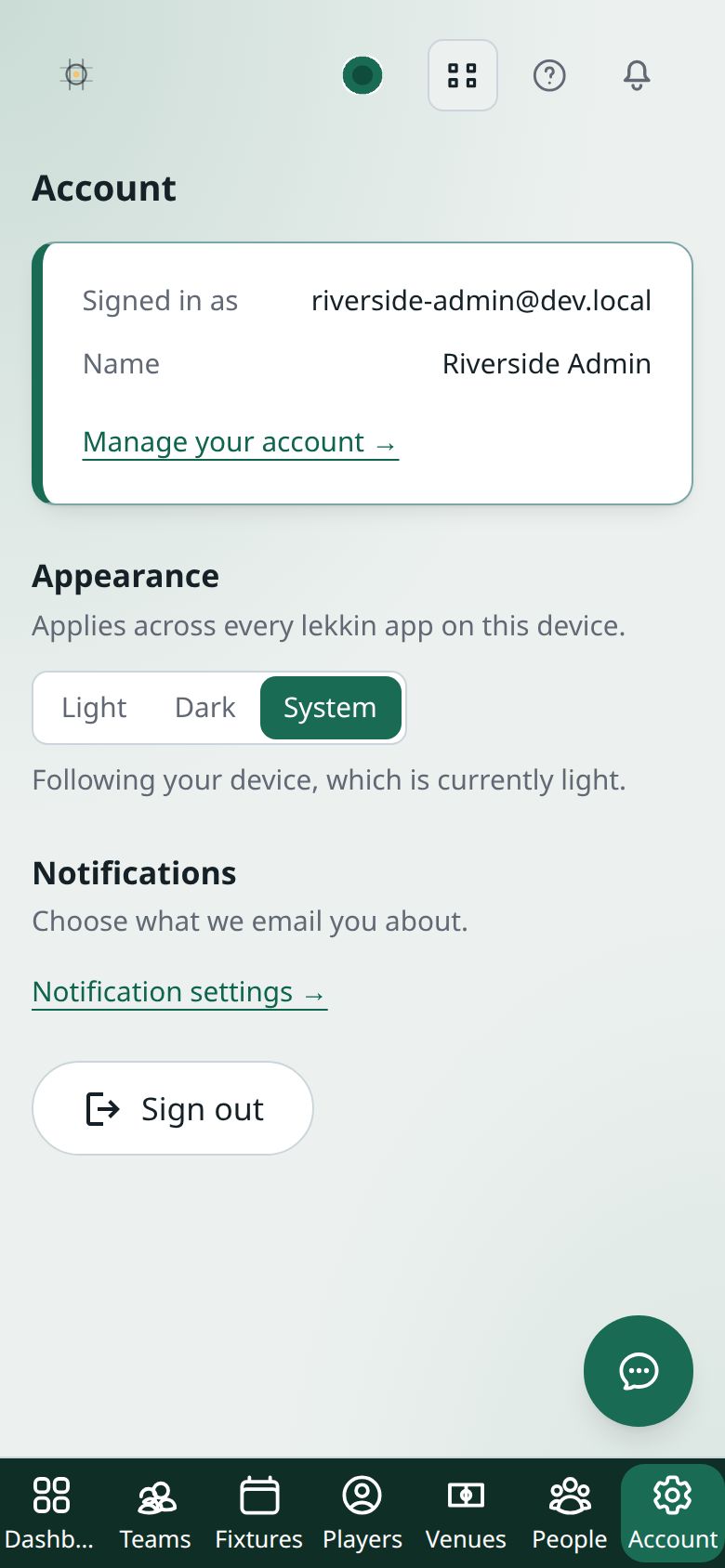
Appearance chooses Light, Dark or System, which follows your device. It applies to every lekkin app on that device.
Changing your name, email or password
These are changed in one place for all the lekkin apps: your account page on the lekkin sign-in site.
- Press Manage your account →, from Account or from the menu at the foot of the side menu.
- Change what you need:
- Your name — your display name, first name and last name.
- Change email — enter the new address and your current password, then press Send confirmation link. Your old email stays in place until you click the link in the email we send to the new one.
- Change password — enter your current password and the new one twice. Your other sessions are signed out.
- Two-factor authentication and Passkeys — add a second step at sign-in, or sign in with Face ID, a fingerprint or your device’s PIN.
- Use the back link at the top to return to the app you came from.
Forgotten your password? Use Forgotten your password? on the sign-in page.
Signing out
Open Account and press Sign out. You’re taken back to the sign-in page.
Who can get into your club
Access comes from a role. The roles your club can give are:
- at the club: Administrator, Secretary and Team management;
- at a team: Team manager.
A role at the club covers every team. A team manager covers only their team. For what each role can do, see Who in your club can do what.
Giving somebody a role
Only club admins see People in the menu.
- Open People.
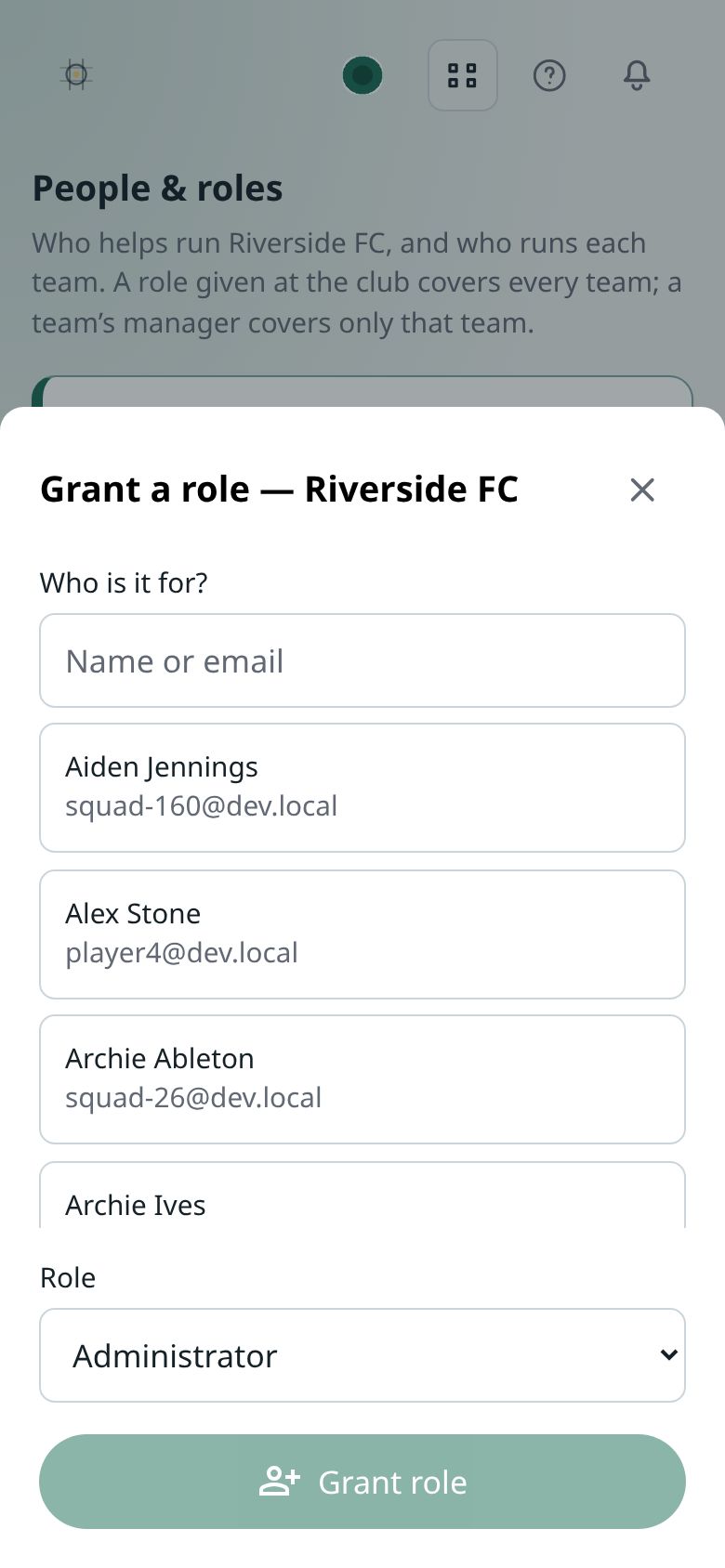
- Find the club, or the team, and press Grant a role.
- Search for the person by name or email, and choose them.
- Choose the Role and press Grant role.
To take a role away, press Remove and the role’s name, beside the person. Two things can’t be removed here, on purpose: your own role, so you can’t lock yourself out, and an Owner, which is protected.
If your club is part of an organisation, its admins are listed under Organisation admins. They run every club in the organisation and are changed in the Organisation Hub, not here.
Somebody new to the club
You can only give a role to somebody your club already has a record of: a player, or a person recorded as staff. If there’s nobody to choose, the page tells you.
The Club Hub doesn’t have a way to add a new member of staff. If the person you want to give a role to isn’t on your club’s records, get in touch.
Players and guardians
Players and guardians don’t use the Club Hub. They get into the Player Hub when the club invites them, or approves their request to join. See Teams, players and fixtures.
When somebody accepts an invitation, a new person sets a password. Somebody who already has a lekkin account signs in and accepts with that account.
I can sign in but I can’t see a club
Ask one of that club’s admins to give you a role, then sign in again.