Teams, players and fixtures
Your teams, the people who play for them, and every game they have, from your club’s side of the pitch.
Anyone who can open the Club Hub can look at teams, players and fixtures. The buttons that change them only appear for club admins.
Teams
Teams lists every team your club runs, with its age group, gender and league. Teams always carry your club’s name in front.
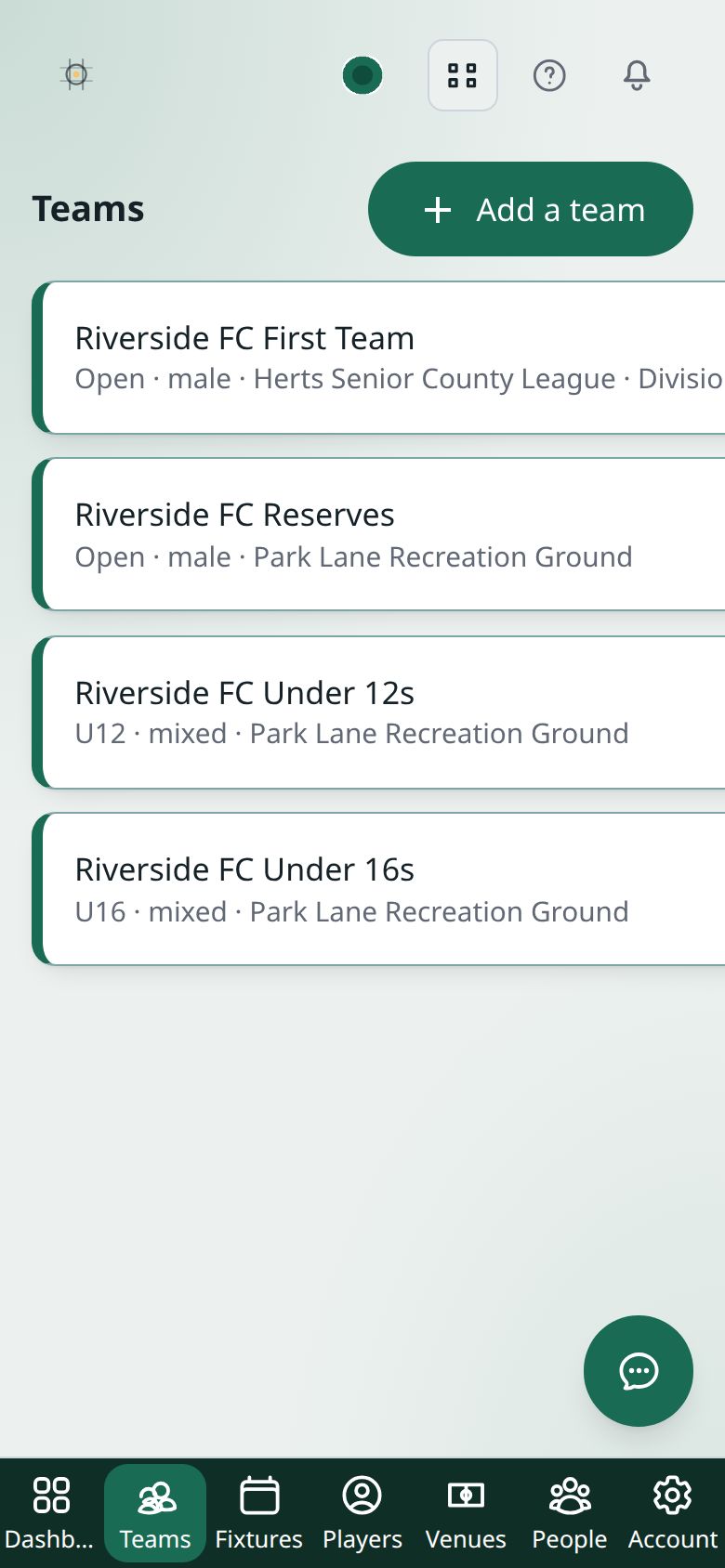
Adding a team:
- Press Add a team.
- Enter the Team name, Age group and Gender. If you leave the age group empty it’s set to Open.
- Choose a League if you want to. See Which league your team plays in.
- Press Add team.
Correcting a team: open it from Teams, press Edit team, change what’s wrong and press Save changes. Two teams at the same club can’t have the same name.
Opening a team also shows its squad.
Players
Players lists everyone registered with your club. Use Search to find somebody by name or email.
Inviting a player:
- Press Invite player.
- Choose their team, and enter the Player’s name. Their email is optional.
- To add their guardian at the same time, tick Add their guardian and enter the guardian’s name, and their email if you have it.
- Press Send invitation.
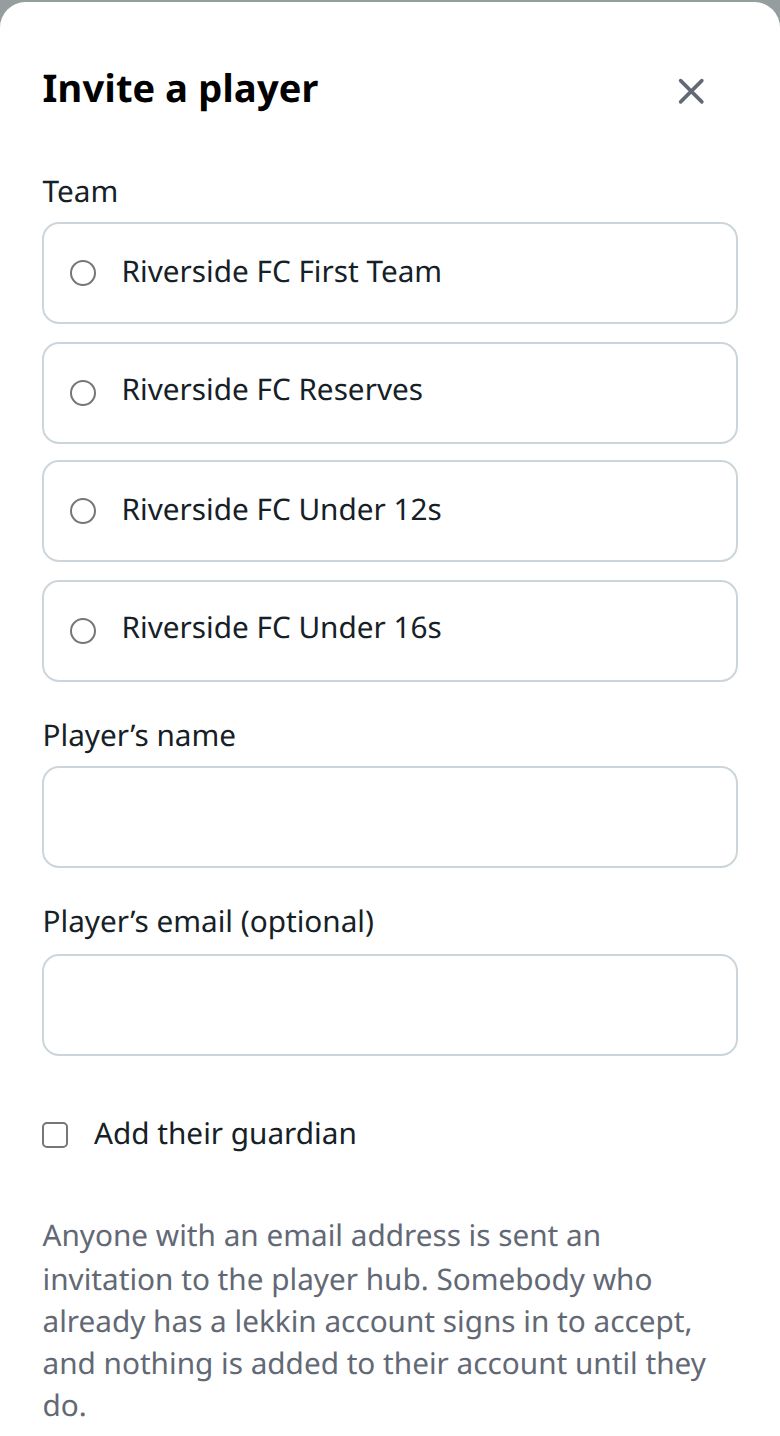
Anyone you gave an email address is sent an invitation to the Player Hub. If they don’t have a lekkin account yet, the player joins the squad straight away. If their email already has a lekkin account, nothing is added until they accept.
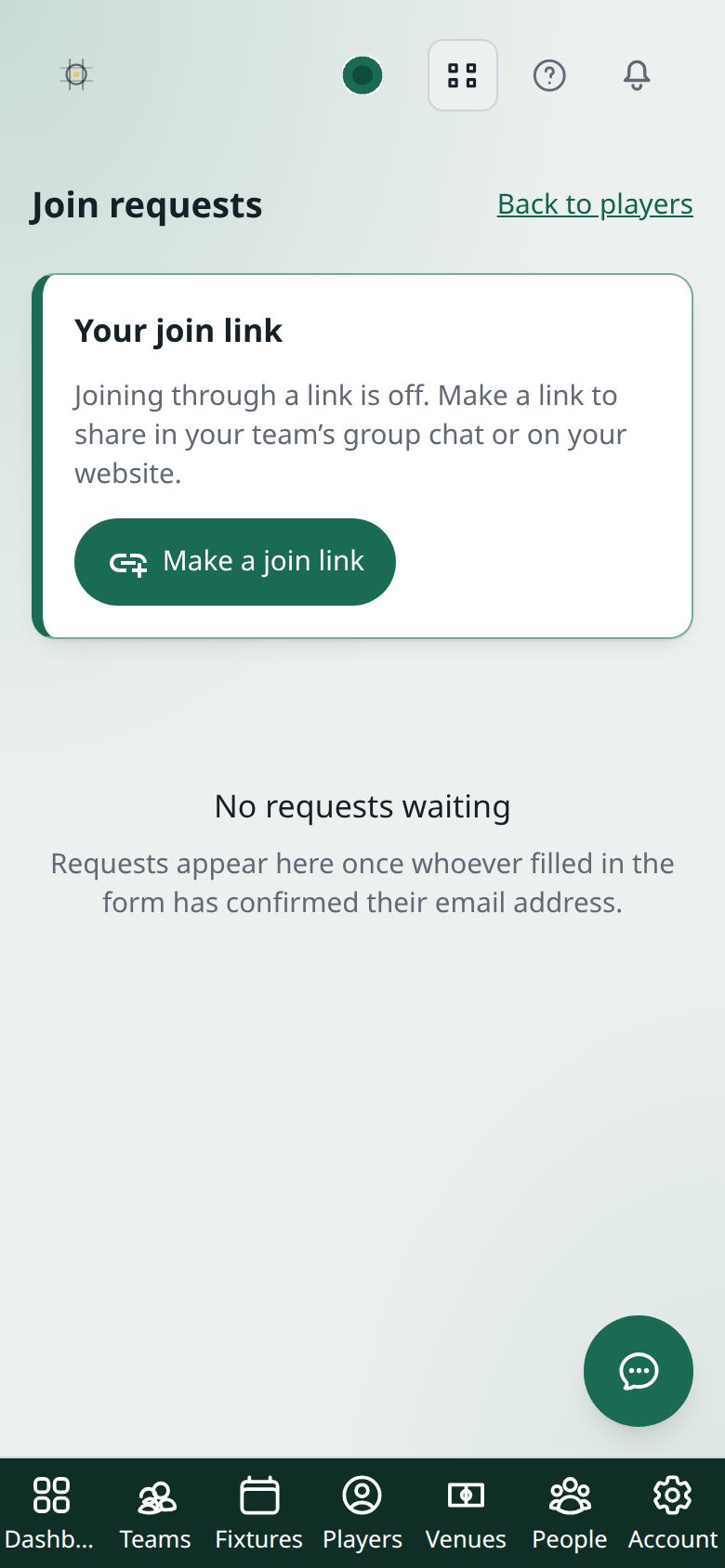
Letting people ask to join: press Join requests and link and then Make a join link. Share the link, the QR code, or the button for your website. Anyone who fills in the form confirms their email. Their request then waits on that page, and you choose a team and press Approve or Reject. You can Replace link or Switch off at any time.
Guardians
Press Guardians beside a player to see who acts for them. To add one:
- Someone already here links a person your club already has a record of.
- Someone new adds a name and, optionally, an email, then Add and link. This makes a record only. It doesn’t give them a login.
When your club messages players, anyone with a guardian recorded is contacted through the guardian instead.
Consents
Press Consents beside a player to see how they, or their guardian, answered the club’s questions. The Players list shows Consents outstanding for anyone who hasn’t answered yet. Only club admins can see consents.
Fixtures
Fixtures gathers every game your teams play, in every competition, into one list. Switch between list and calendar. Each game shows home or away, both sides, the kick-off, the competition and any score.
Recording a match or a result happens in the Team Hub. Each game links there: Record match for club admins, View match for everyone else, and Match sheet once there’s a score. See Running a match day.
Club admins also see Results needing attention: played games with no result, and results the other club has contested. Each one links to the Team Hub to sort it out.
Adding and moving your own fixtures
Most fixture lists come from the governing body. Where a competition lets clubs manage their own fixtures, a club admin can:
- Press Add fixture, choose the competition and your team, and say whether you’re at home or away.
- Choose the opponent. If they’re not listed, choose Opponent not listed? Add them… and type their club’s name. Only your club can see an opponent added this way.
- Add the round and kick-off if you know them, and press Add fixture.
To change a game with no result yet, press Move and change the kick-off or round. The other club is told. A fixture your club added can also be removed from there.
If none of your competitions allow it, the form tells you.