Your club’s badge and colours
Make lekkin look like your club: your badge, your colours, and a menu to match. Everyone at your club sees them.
Where to find it
On the dashboard, the Club Information widget has a link to Club preferences — badge & colours. If you removed that widget, press Customise, then Add widget, to bring it back.
Club preferences change what everyone at your club sees, so only club admins can open it.
A new club is also asked for its badge and colours when it first sets up. See Getting started with your club.
Your badge
- Under Badge, press Upload badge.
- Choose your crest. It must be a PNG, JPEG or WebP image, up to 256KB.
- Press Save preferences.
Your badge shows beside your club’s name on the dashboard.
Your colours
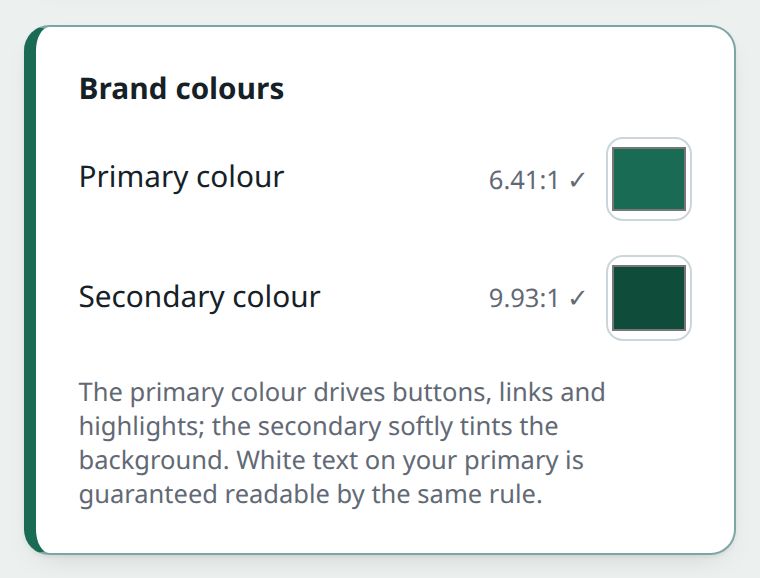
Under Brand colours:
- Primary colour is used for buttons, links and highlights.
- Secondary colour softly tints the background.
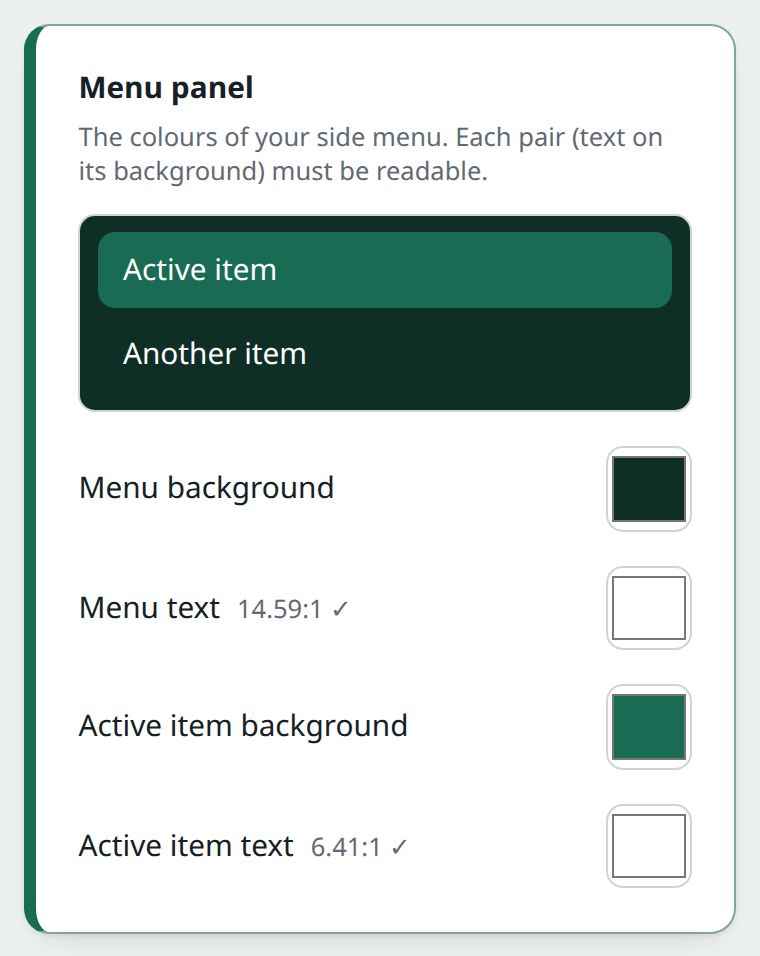
Under Menu panel you can colour your side menu: Menu background, Menu text, Active item background and Active item text. A small preview beside them shows how the menu will look.
Changes show as you pick them, so you can see what you’re getting. Nothing changes for anyone else until you press Save preferences. If you leave the page without saving, your colours go back to how they were.
Your club’s colours are worn in the Club Hub, the Team Hub and Facilities, so moving between them still looks like your club.
Why won’t it save my colour?
Every colour is checked as you pick it, so nobody ends up with text they can’t read. Beside each one you see a contrast figure, such as 4.80:1 ✓.
- Primary and secondary colours are checked against white. Anything below 4.5:1 shows too light to read.
- Menu text is checked against the menu background, and Active item text against the active item’s background. Below 4.5:1, it says the text is hard to read.
- If you set an Active item background but no text colour, the check uses white text, because that’s what the menu shows.
While any check fails, Save preferences can’t be pressed. Pick a darker or lighter shade and try again.
A colour you have never set uses the app’s own.
Also on this page
- Club name. How your club appears everywhere, including on fixtures and in the club switcher. It can’t be empty.
- Code of conduct. A link to your club’s code of conduct, starting with https://. With a link, players and guardians are asked to confirm they’ve read it. Changing the link asks everyone again. Leave it empty and nobody is asked.