Getting started with your club
From nothing to a club you can run: create it, sign in, add your badge and colours, and get your teams and players in.
Creating your club
There are two ways in, and both make you the club’s admin.
If you don’t have a lekkin account yet, use sign up. It asks four things in turn: you, your organisation, your club, and your first team.
- Fill in each step and press Create my club.
- We email you a link. Your club isn’t created until you follow it. The link lasts seven days, so check your spam folder if it hasn’t arrived.
- Follow the link, then press Sign in to your club.
The organisation step only matters if you run more than one club. If you leave it, we use your club’s name.
If you already sign in to lekkin, create the club from your sign-in page instead:
- Sign in. On Choose an app, press Create a club. If you have no apps yet, the form is already on the page.
- Enter the Club name, its Sport, Your first team and, if you like, Its league.
- Press Create a club. You go straight into the Club Hub, in the new club.
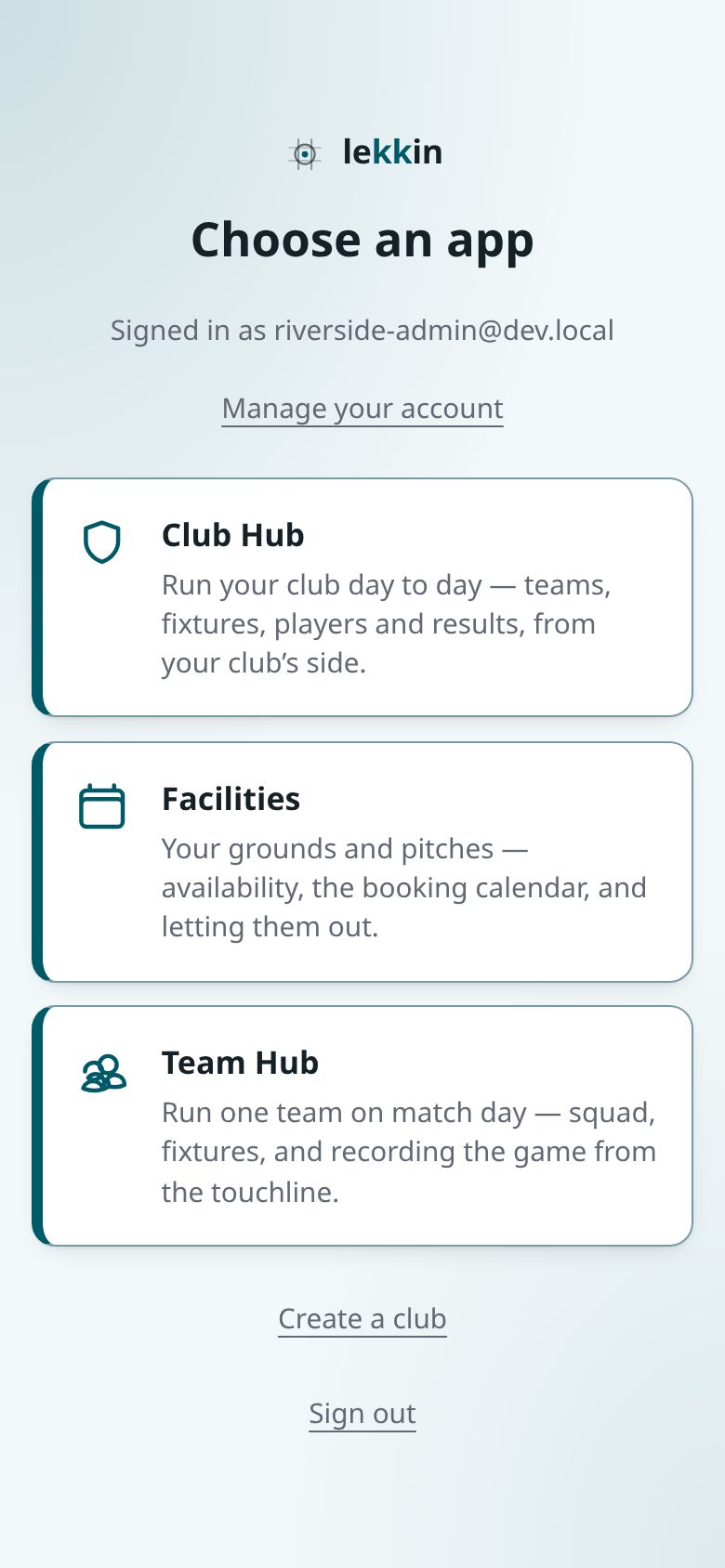
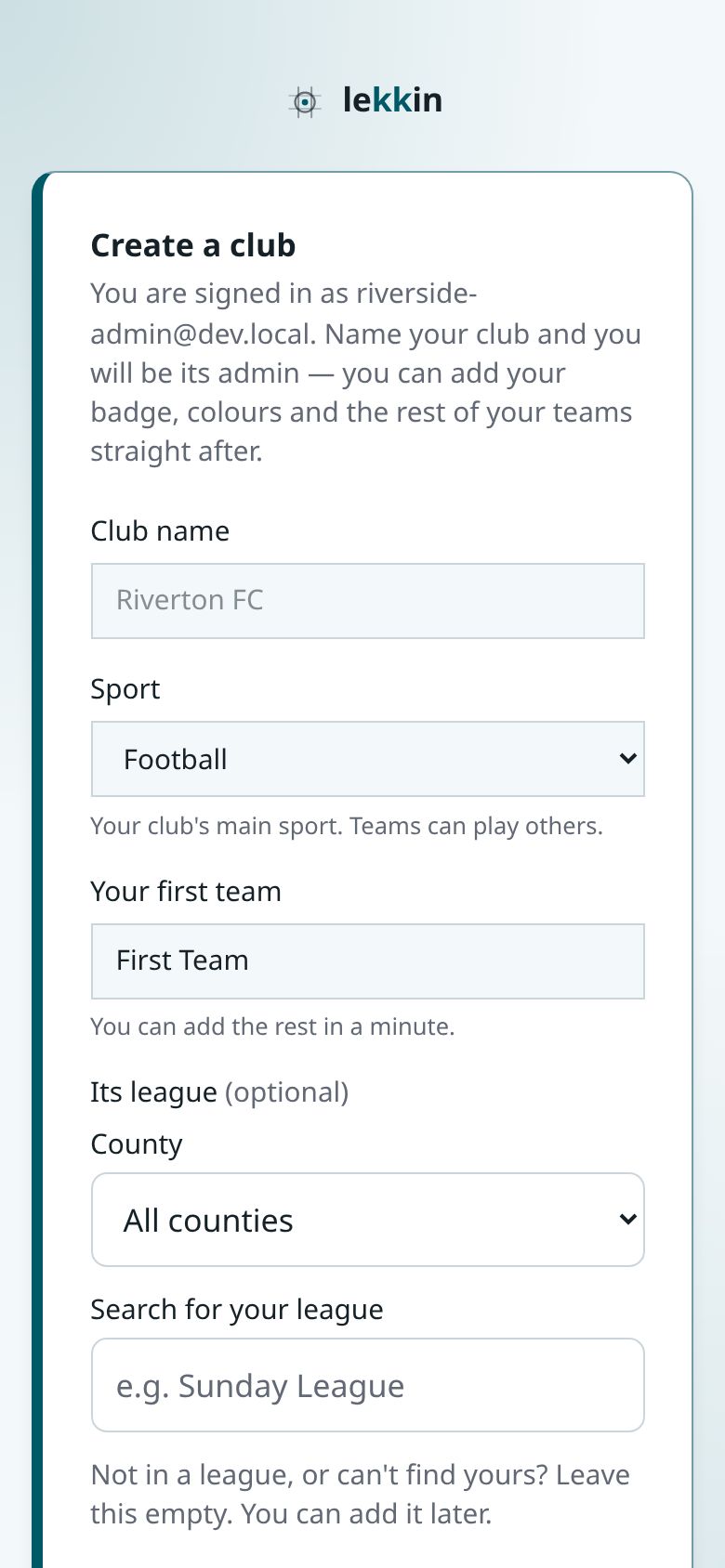
You can create up to three clubs a day. Clubs aren’t created from inside the apps.
Finishing the set-up
While your club has no badge, no colours or no team, the dashboard shows a card saying Finish setting up your club and how many things are left. Press Continue setup:
- Badge. Upload your crest as a PNG, JPEG or WebP image, up to 256KB. You can skip it.
- Colours. Pick a primary and a secondary colour. Colours that would be hard to read can’t be saved.
- First team. Only asked if the club has no team yet. This is the one step you can’t skip, because a club with no teams can’t have fixtures, squads or players.
Press Save and finish. Press Later to hide the card until you next open the app in a new browser tab or window. It keeps coming back until the badge, colours and a team are all done.
Only club admins see the card. Everything else works while it’s still there.
What to do first
- Add the rest of your teams from Teams, with Add a team. See Teams, players and fixtures.
- Say which league each team plays in, if you want to. See Which league your team plays in.
- Bring your players in from Players, with Invite player, or by sharing your club’s join link.
- Give people a job from People: a secretary, or a manager for each team. See Your account, and who can get into your club.
If you help run more than one club
After you sign in you’re asked to choose a club. You can change club at any time by tapping the club’s name in the top bar. Everything you see belongs to the club you’re in.
I can sign in but I can’t see my club
The Club Hub is for people who help run a club. If somebody else runs your club, ask one of its admins to give you a role, then sign in again.