Your club dashboard
The first screen in the Club Hub: your club this season at a glance, arranged the way you want it.
What’s on it
At the top is your club’s badge and name, with the season underneath. If more than one season is running, both are named. If none is, it says No active season.
Below that are four numbers: Teams, Active players, Matches played and Wins. Matches and wins are counted from recorded results this season.
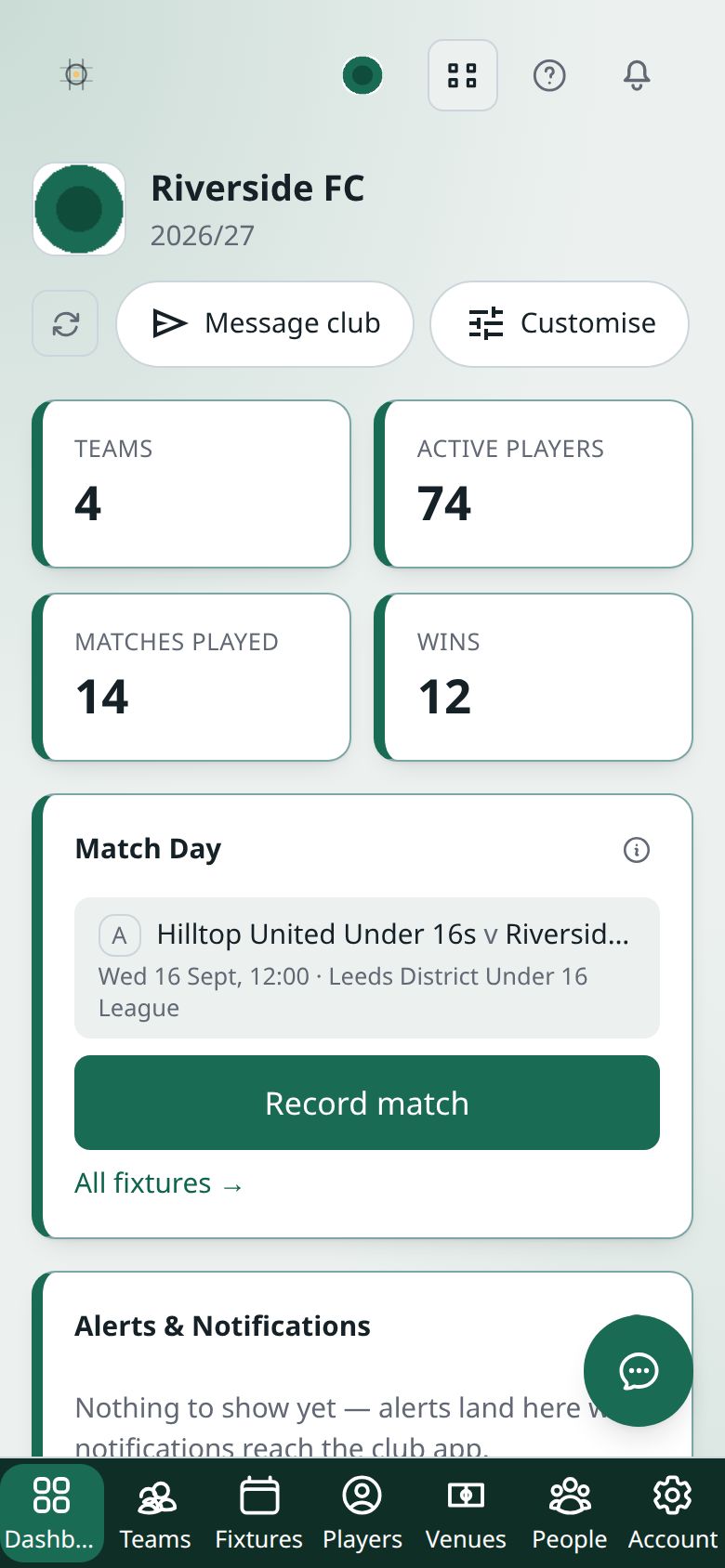
Then come the widgets. The ones with real information behind them are:
- Match Day — today’s games, each with a button into the Team Hub for that team. With no game today it shows the next one.
- Upcoming Fixtures — the next five games, soonest first.
- Recent Results — the last five recorded results.
- Performance Trends — played, won, drawn, lost and win rate this season.
- Season Record — the same, plus goals for, goals against and goal difference.
- Teams Overview — your first five teams, each linking to its squad.
- Squad Statistics — how many players are registered across the whole club.
- Club Information — your club’s name, short name and contact email.
- Club Administrators — the people recorded as staff at your club.
A few widgets have no information behind them yet, and say so in the widget rather than showing a zero.
What does this number mean?
Every widget has an ⓘ beside its title. Tap it, or hover on a computer, and it tells you what the figure is, where it comes from and what it covers. Fixtures without a recorded result don’t count towards any record.
Getting the latest numbers
Your club’s numbers load when you open the app. To fetch them again, pull down from the top of the dashboard on a phone, or press the refresh button beside Customise.
Arranging your dashboard
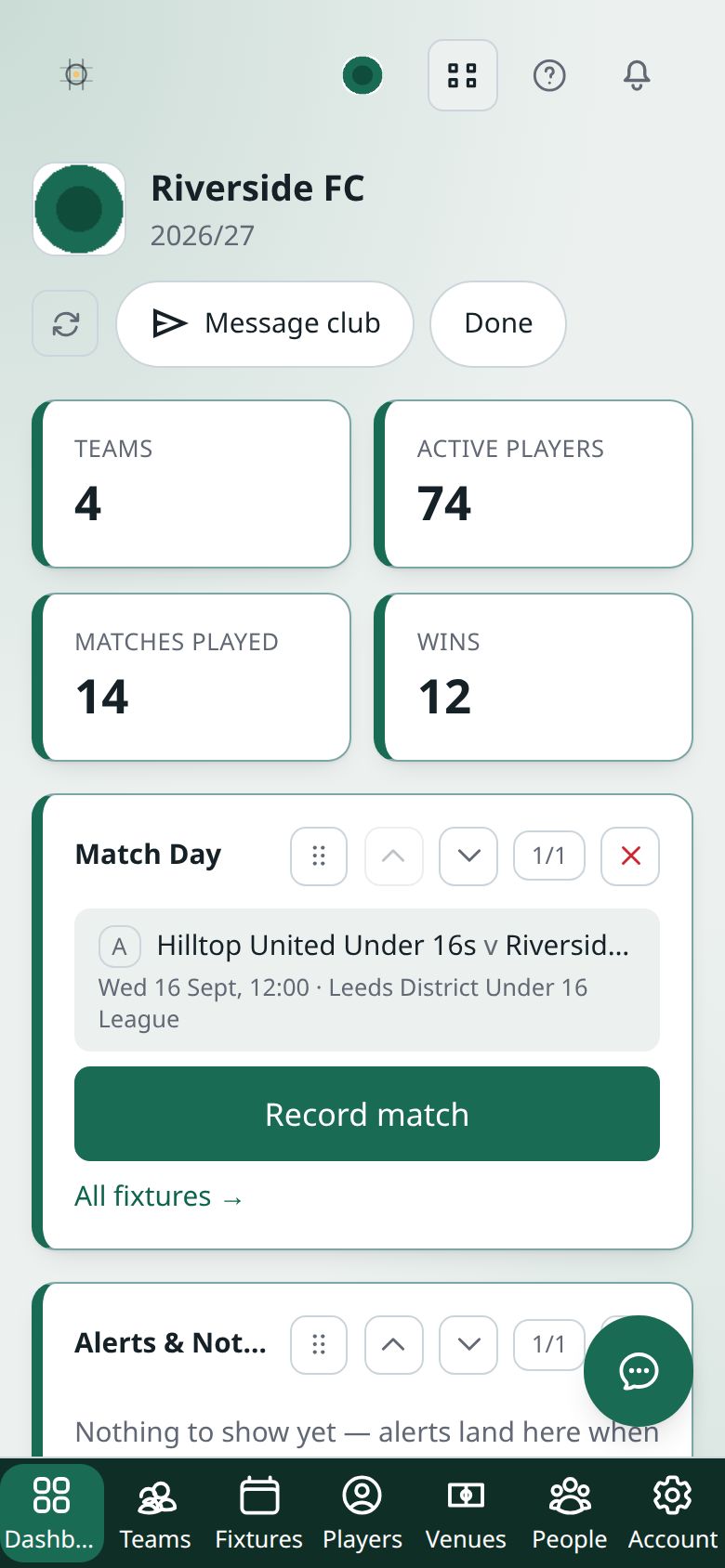
- Press Customise.
- On each widget you can:
- drag the handle to move it, or use the up and down arrows;
- press ½ or 1/1 to switch it between half and full width;
- press the cross to remove it.
- Press Add widget to bring back one you removed. Reset layout puts everything back as it started.
- Press Done.
Your layout is saved on this device, in this browser, for you and this club. It isn’t shared with anyone else at the club. It also doesn’t follow you to another phone or computer, so you set it up on each one you use.
Also on the dashboard, for club admins
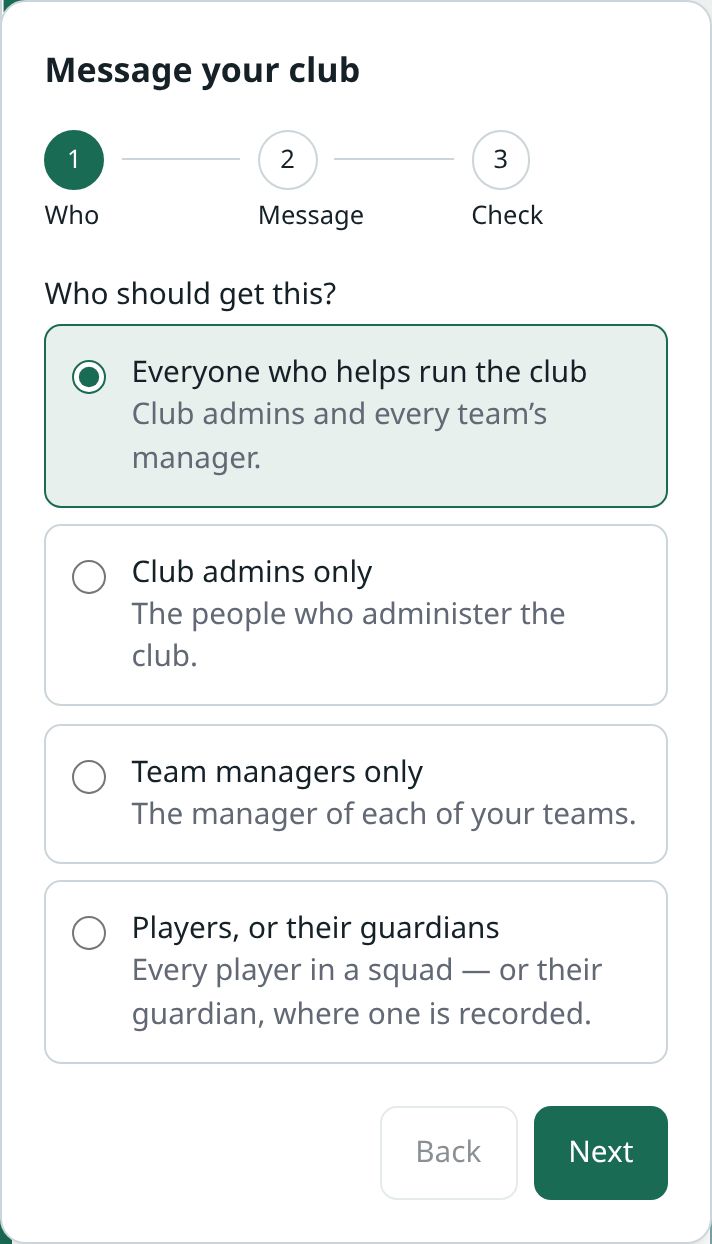
- Message club writes to the people at your club. You choose who: Everyone who helps run the club, Club admins only, Team managers only, or Players, or their guardians. It goes to their in-app notifications, and you can tick Also send it by email. When you write to players, anyone with a guardian recorded is contacted through the guardian instead.
- The Club Information widget has the links to Club preferences (your name, badge and colours) and, for admins and secretaries, Subscription.
A number looks wrong
The figures come from the fixtures and results recorded on lekkin. If a result is missing or wrong, it’s put right in the Team Hub. See Running a match day.