Setting up your ground and pitches
From nothing to a calendar people can book — grounds, pitches, hours, prices, and deciding what strangers may see.
Grounds and pitches are added in the Club Hub. Their hours, prices and how requests are answered are set here in Facilities. Only club admins can do either.
1. Add your ground
A ground is a place. In the Club Hub, open Venues and press Add venue. Give it a name and its address, so people know where they’re going.
2. Add each pitch
Open the ground in Venues and press Add pitch. A “pitch” is anything you let separately. A 3G that splits into two halves you let independently is two pitches; one you only ever let whole is one. Get this right first — it decides what people can book and what you’re charged for.
3. Say when it’s open
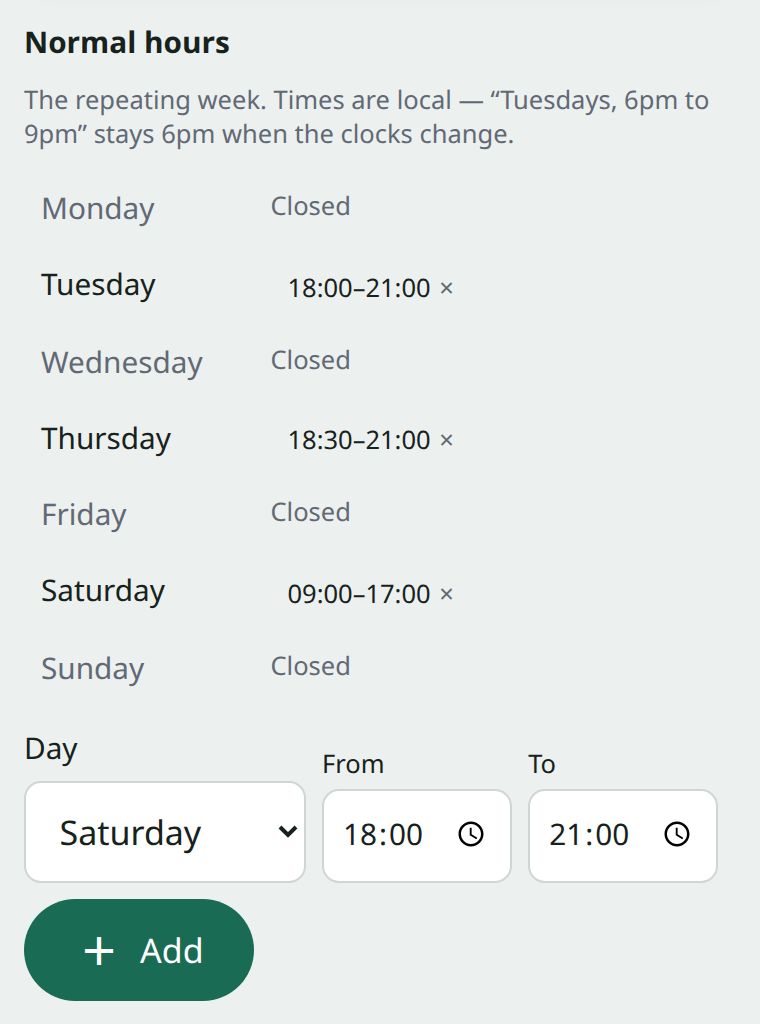
In Facilities, press Opening hours and prices → on the Overview. That opens Pitch settings, the club’s defaults. Under Normal hours, set the club’s usual week once and every pitch follows it. For a day that doesn’t follow the pattern, use Closures and one-off changes.
These are the hours you’ll let the ground to other people, not the hours you use it yourselves. Your own fixtures and training are booked in regardless of them.
4. Set what it costs
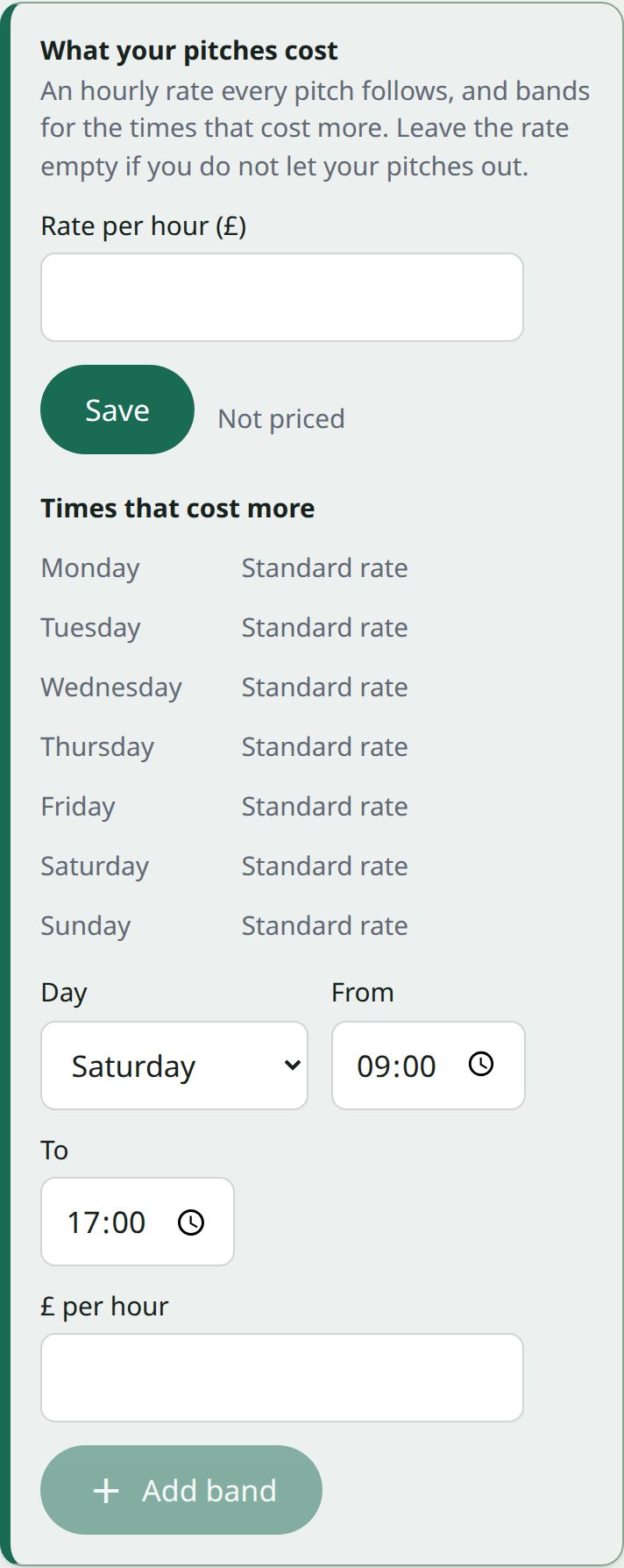
On the same page, under What your pitches cost, give the club an hourly rate. If you charge more at peak, add a band under Times that cost more. The rate and bands apply to every pitch.
A pitch with no rate isn’t free — it just can’t be paid for online. People can still ask for it and you settle up yourselves.
5. Decide how requests are answered
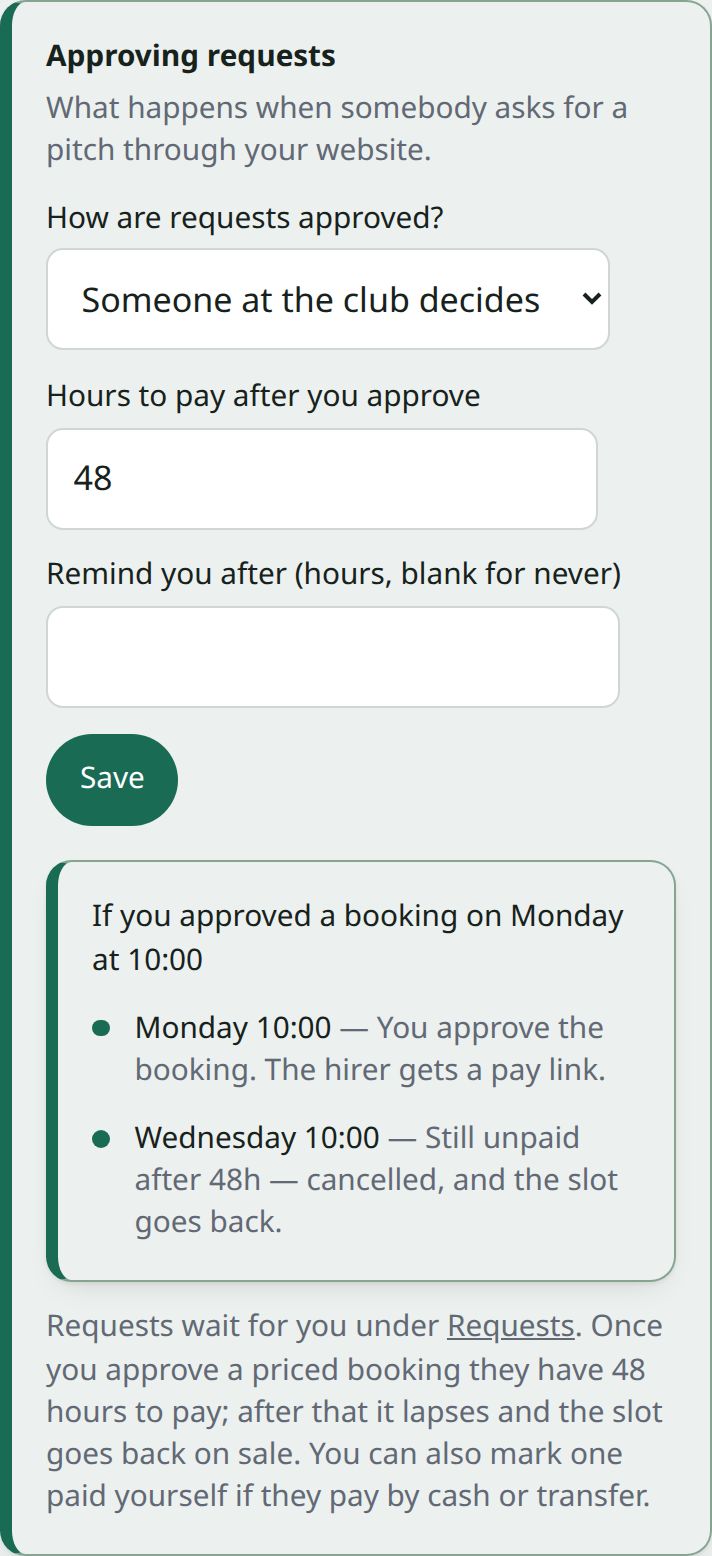
Under Approving requests, choose how:
- Someone at the club decides — the default. A request lands in your queue and holds nothing until you say yes.
- Automatically, when they pay. Paying is the approval. The slot is held for ten minutes while they pay, so two people can’t buy the same hour.
Start with approvals. Switch once you trust the calendar — it’s the safer way round while you’re still learning what people ask for.
6. Open it to the public
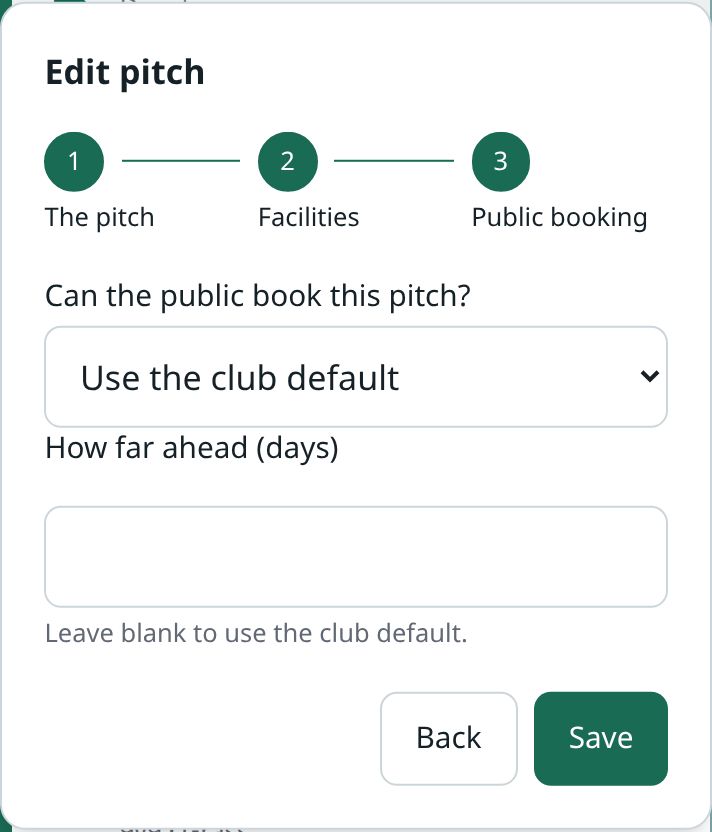
Nothing is public until you say so. In Pitch settings, Can the public book your pitches? is the club’s default, with How far ahead (days) people can book.
To make one pitch different, go back to the Club Hub, open the ground in Venues and press the pitch. Step through to Public booking and set Can the public book this pitch? to Yes, No or Use the club default, then press Save. Plenty of clubs open the 3G and keep the show pitch private, and that’s exactly what this is for.
Then put it on your website — two lines to paste in.