Taking bookings for your pitches
From an empty calendar to somebody booking and paying for your 3G on a Tuesday evening, without ringing anybody.
Before you start
You’ll need facility booking on your subscription (what you pay for), and a bank account to be paid into. If your club hasn’t got it yet, you can try it free for 30 days with no card — everything below works during the trial. The money goes straight to your club — we’re never in the middle of it and take no cut of what you charge.
1. Add your ground and pitches
In Facilities, open Venues (in More on a phone) and press Add a ground in the bottom corner. Give it a postcode and the ground’s page shows it on a map. Then open the ground and press the Add facility tile for each pitch on it. See Setting up your ground and pitches. A “pitch” is anything you let separately, so a 3G that splits into two halves is two pitches if you let them separately, and one if you don’t.
2. Say when it’s open
The rest is set in Facilities too. Open Booking hours (in More on a phone) and make named sets of opening times, cut into slots (such as 7-a-side, hourly). Then give each pitch one: open the pitch from its ground in Venues and press Change booking rules. Pitches with the same rules share a set. Days that are different go under Closures and one-off changes on the Pitches tab.
These are the times you’ll let the ground, not the times you use it yourselves. Your own training and fixtures are booked in regardless. A pitch with no booking hours can’t be booked from outside the club.
3. Set what it costs
Under What your pitches cost, give the club a price per hour (a booking costs it for as long as it lasts). If you charge more at peak, or less off it, switch on Prices that change by time: you give a price for high demand, standard and low demand, and mark each set of booking hours with its demand. Every set starts on standard. They apply to every pitch, unless a pitch sets its own in its booking rules. A pitch with no rate can still be requested — it just can’t be paid for online, so you’ll settle it yourselves.
4. Decide how requests are answered
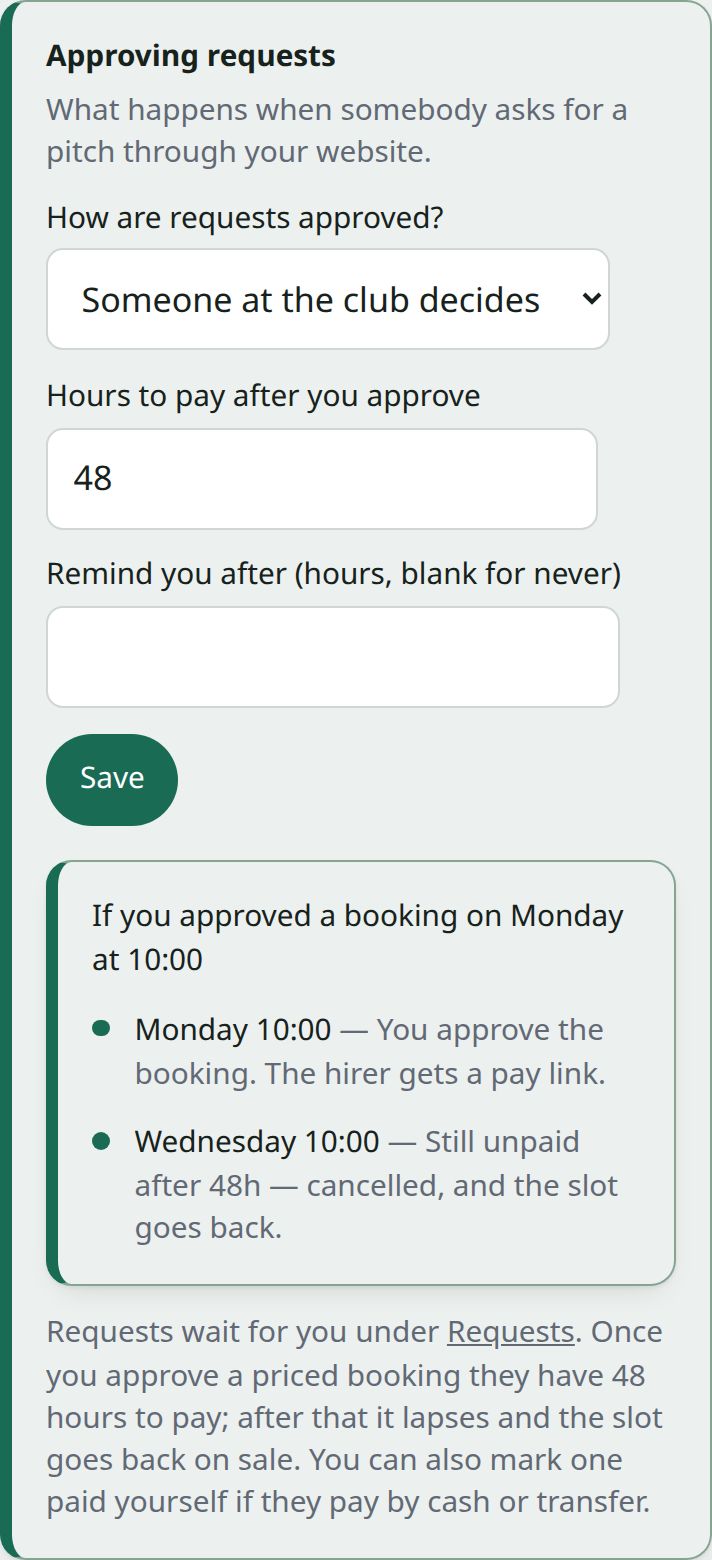
Under Approving requests:
- Someone at the club decides (the default). A request appears in your queue and holds nothing until you say yes.
- Automatically, when they pay. Paying is the approval. The slot is held for ten minutes while they pay, so two people can’t buy the same hour.
Start with approvals. You can switch once you trust the calendar, and it’s the safer way round while you’re learning what people ask for.
5. Open it to the public
Nothing is public until you say so. Can the public book your pitches? in Pitch settings is the club’s default. To set one pitch differently, open the pitch in Facilities and press Booking settings, then choose Yes, No or Use the club’s default under Can the public book it? Plenty of clubs open the 3G and keep the show pitch private. Editing the pitch under Venues changes what the ground is, never whether it is let.
Then put the booking page on your own website. There’s a snippet to paste in: in Facilities, open Your website. It needs no login and shows only free times, never who booked what.
What people see
A visitor sees when a pitch is free and what a slot costs, picks a time, and pays by card. They never see who else booked, or anything about your club’s money. You get told when a booking is paid for, and when a card is declined.
If somebody doesn’t pay
Set how long they get. Past that, the booking stops holding its slot so the time can be let again. You can set Remind you after so the club is reminded first. An unpaid booking never quietly blocks a Saturday for ever.