Your club’s booking page
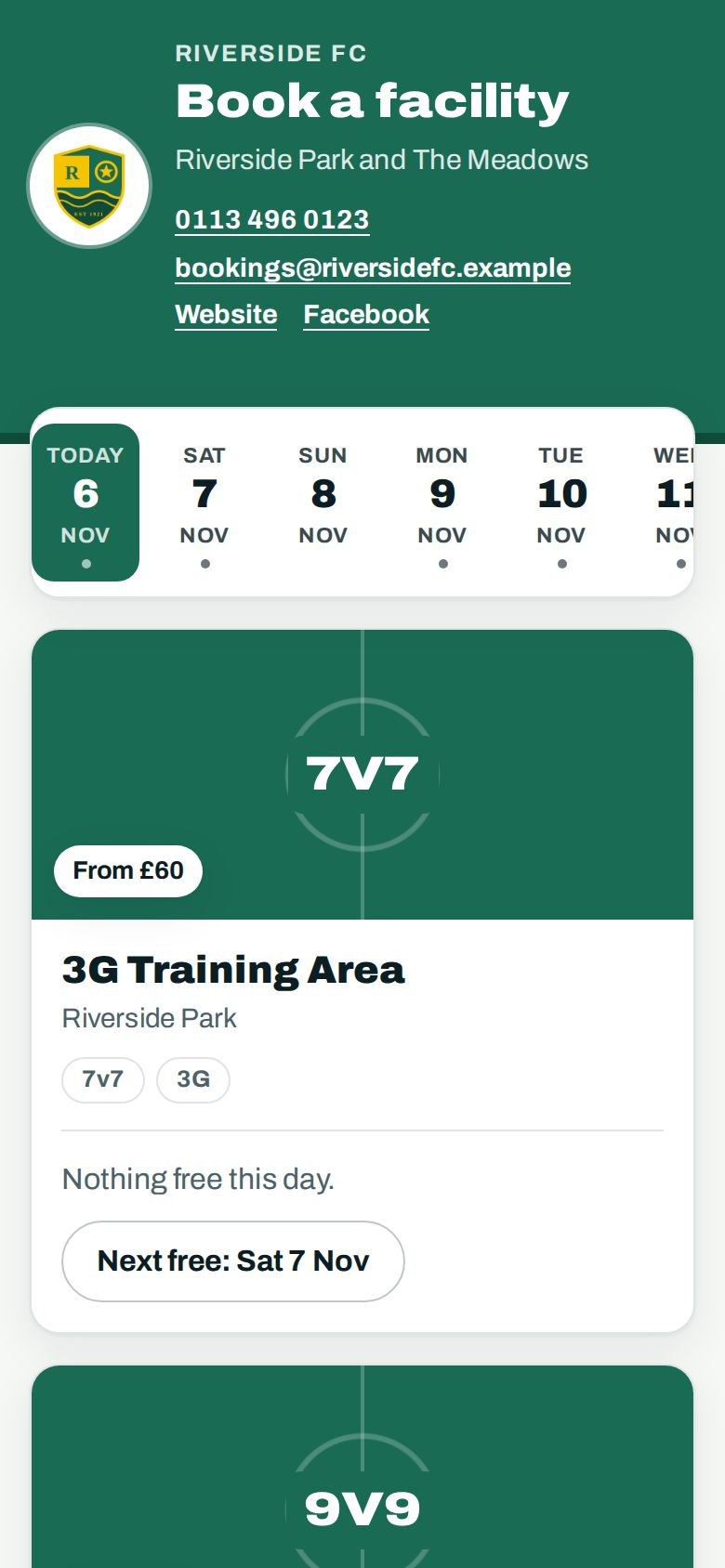
Every club has its own booking page, ready to share: your colours and badge, every facility you’ve opened to the public, its free times and how to get there.
What it is
A page of its own for booking your facilities, with nothing to paste and nothing to build. Link to it from your website, your social posts, your emails, or a poster on the clubhouse door.
Visitors see:
- your badge and colours;
- the next fortnight as a row of days, with a dot under each day that has something free;
- every facility you’ve opened to the public, with its photo, its size and surface (or, for a room, how many people it holds), what it has (floodlights, changing rooms, a kitchen and so on) and its free times, each with its price (where people choose how long, each start time shows its price for that length);
- how to get there: each ground’s address, a link that opens it in their maps app, your directions and parking notes, and your ground’s photos and videos.
Booking takes a few taps and two fields. They tick a free time, or several (on any of the days), press Book on the bar at the bottom, type their name and email, and press Book this time. No account, no password. Several times booked together are paid for in one go.
What else a time books
If one of your automations books another facility with it (the clubhouse with a pitch, say), the facility shows Comes with that facility, and each time lists it, with its hours and price, even when it’s free. If you’ve let hirers leave it out, they can untick it.
Questions when booking
A facility can ask anyone booking it a few questions, such as “Do you need the cricket nets?”: open the facility (Venues, then the facility), and choose Change booking questions. Each is answered yes or no, or in their own words, and you choose whether they must answer it. Up to ten, in the order you set.
The answers are kept on the booking, exactly as asked, even if you change the question later. You’ll see them on the request, on the booking in the Calendar, and in your calendar app if you’ve added your bookings to it.
Booking questions are on the facility booking plan for three or more facilities, and on a free trial. On a smaller plan they’re kept but not asked, marked Paused on the facility’s page, where you can remove them; they’re asked again as soon as you’re back on that plan.
Discount codes
People can type one of your discount codes under Have a discount code?: it’s checked as they apply it, and the price shows what it takes off.
Where to find its address
- Open Your website (in More on a phone).
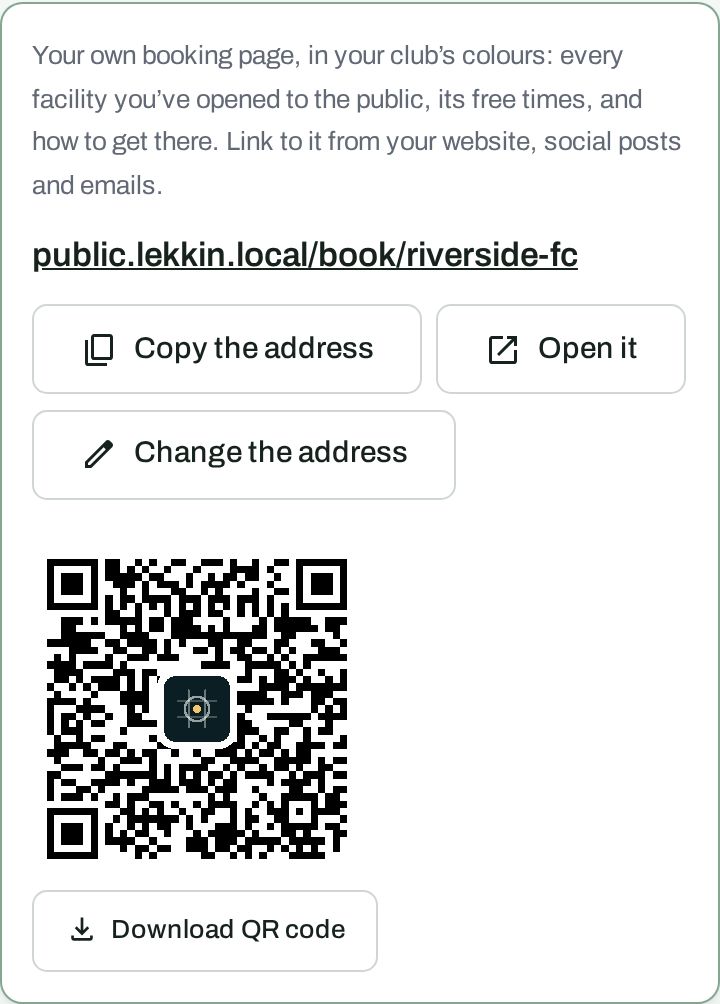
- Your booking page is at the top. Its address is there to press Copy the address or Open it.
The address is made from your club’s name, for example public.lekkin.app/book/riverside-fc.
What your page says about your club
Under the address on Your website, What your page says about your club fills in the rest of your page: a few lines about your club, what’s at the ground (parking, changing rooms, showers, toilets, a bar, a café, floodlights, step-free access), a contact email and phone, and links to your website, Facebook, Instagram and X. Press Save and the page shows it straight away. Everything here is public, so leave out anything you don’t want strangers to see.
Your page shows your phone, email and links under your club’s name at the top, and the rest in About further down, with the sports your pitches are for. If one of your grounds has a photo, it sits behind your crest at the top. Each ground in Getting there has a map, where we’ve found its postcode.
The QR code
Beside the address is a QR code that opens your booking page. Press Download QR code for a file you can print at any size, on a poster, a flyer or the back of a programme. Point a phone camera at it and the page opens.
Changing the address
A club admin can press Change the address and type a new one: letters, numbers and hyphens, 3 to 40 of them. You’ll see the full address as you type.
The old address stops working straight away, and so does any QR code you’ve already printed. Change the links on your website and download the new QR code at the same time. If another club already has the address you want, you’ll be told and can choose another.
Secretaries and others who book can see and share the address but can’t change it.
What happens when someone books
That depends on How are requests approved? (Configure, then Default pitch settings):
- You approve requests yourself: their booking arrives under Bookings for you to accept or turn down, and they’re emailed your answer. Nothing is booked until you accept, so two people can ask for the same time and you choose.
- Requests approve themselves: a time with a price takes them straight to pay, and the time is held for them while they do. Paying books it. A time with no price still comes to you to decide.
Either way, they can find their bookings again from the Already booked? link at the bottom of the page.
If your page shows nothing to book
The page lists only facilities that are open to the public, have booking hours, and have free time in the next fortnight. If it says there’s nothing to book online, check those three in Configure, in that order.
Your booking page or the code on your website?
Both show the same facilities and free times, and take the same bookings.
- Your booking page needs nothing from you. Link to it and you’re done.
- The code on your website (how to add it) puts booking inside a page of your own site, if you’d rather visitors never left it.
You can use either, or both.