Running a match day
Pick the squad, record the match as it happens, and get the result in — including when the signal disappears halfway through the second half.
Adding a game
Your club adds its own fixtures, and the team’s manager can add one from Matches. (Where a league runs a competition’s fixtures on LEKKIN itself, they arrive from the league instead.)
- Press the + in the bottom corner. If more than one competition allows it, choose which.
- Say whether you’re at home or away, and choose the opponent. If they’re not listed, choose Opponent not listed? Add them… and type their club’s name. Only your club can see an opponent added this way. If you know when but not who yet (a cup draw still to be made), choose Not decided yet: it shows as To be confirmed, flagged Opponent to be confirmed on your fixtures and Next up, and you choose the opponent later in the match centre, under When and where. You’re reminded a week and two days before if it still isn’t chosen. If the other club is on LEKKIN too, choose Invite the other club… (Inviting another club to play you).
- Add the round and kick-off if you know them. For an away game, Where we’re playing is filled in from their ground, if your club has noted it; change it if this game is somewhere else. For a home game with a kick-off, you can choose its Pitch there and then: it’s booked if you look after the club’s pitches, or asked for if you don’t (the club confirms it). If your club doesn’t use facility booking, it’s simply booked. Leave it at Not now to choose later.
- Press Add fixture.
Changing the opponent, home or away, or the date. In the match centre, open When and where. If your club added the game, Opponent lets you choose who you’re playing (or set it back to Not decided yet) and whether you’re at home or away; the date and kick-off are just above. Once the result is in, none of these can be changed. You can’t record the match until there’s an opponent. A game with a pitch booked can’t be swapped to away until the booking is cancelled.
The other club is told. If none of your team’s competitions allow it, the form says so. If the pitch couldn’t be booked (someone else has it then, say), the game is still added and you’re offered its Pitch step to choose another.
The division your club named for this team in the League check is offered too, even before the team is entered in it. Its first game there enters the team for the season.
Added a game that’s already been played? You’re asked whether to enter it straight away. Press Enter the match to go to its match centre and add the goals and cards, or Not now to leave it under Fixtures → To record for later.
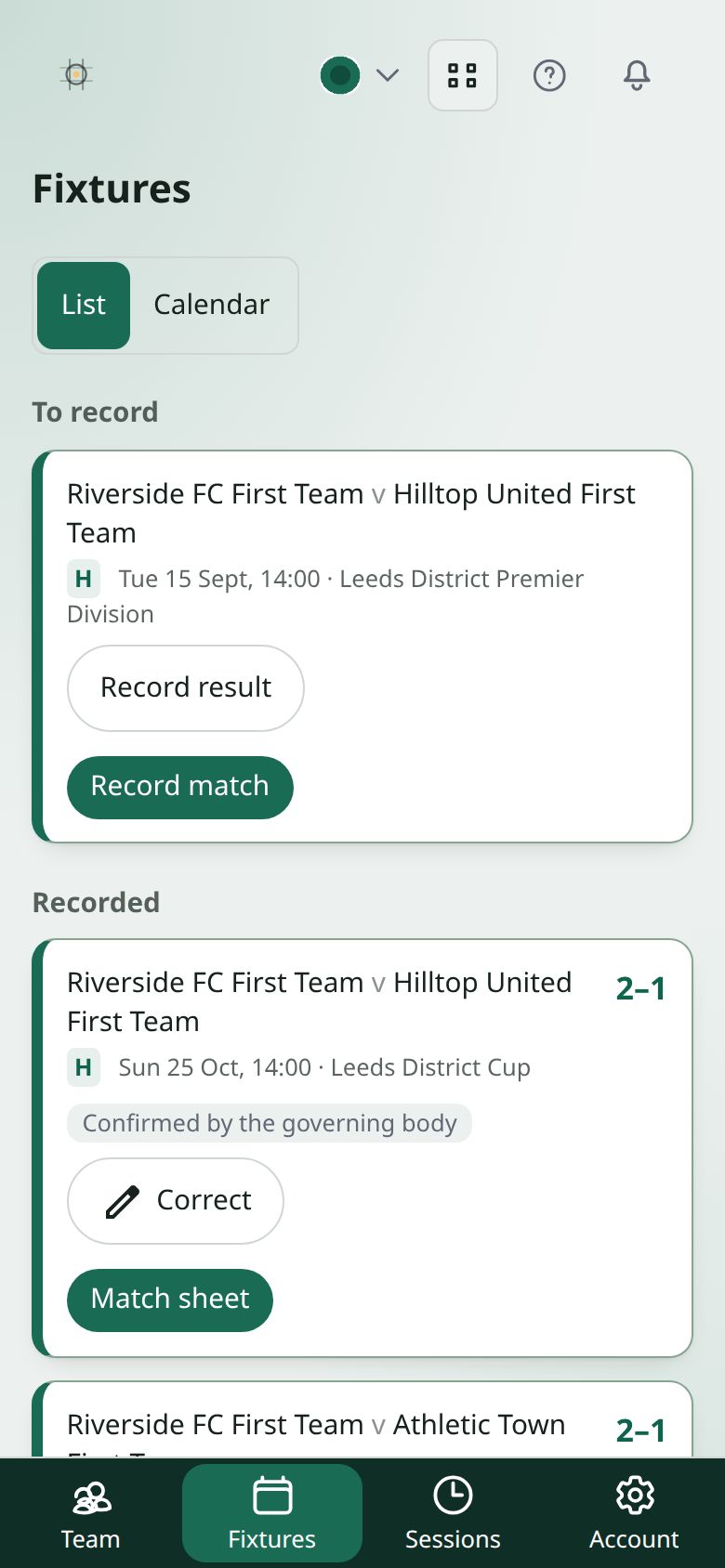
Calendar (the third tab under Matches) shows every game in a month: still to play in your club’s colour, played with no result yet in amber, and those with a result in grey.
The match centre
Press a game on Matches (anywhere on its card) to open its match centre. It has the whole screen: the app’s menus step aside until you leave it with Back, which returns to wherever you opened it from (the calendar, Matches, or another LEKKIN app).
The match is in three parts, each a short set of steps of its own. The front page shows one part at a time, with both clubs’ badges, and opens on the part the match is in now. On the day of the game, that’s Match day. Use the tabs across the top, or swipe on a phone, to look at another part:
- Pre-match (Get set): When and where, then Who can play, then the Team sheet.
- Match day (Record match): recording the match, live or afterwards. It opens once pre-match has been completed: until then it says so, and Go to pre-match takes you there.
- Post-match: Injuries (for the team’s manager and coaches), Who came, then Payments (if your club uses them), then the Summary. These open once the result is in. In netball, the Summary also shows Quarters played: each player’s position in each quarter and how many quarters they played, worked out from your team sheet and changes, ready for the league’s results sheet. A finished game shows the score and Match completed, with View match.
View match reads the game back in two screens; swipe, or tap the tabs, to move between them. The game shows the team sheet, where it was played and when. What happened shows the score, the goals, cards and substitutions, and the player of the match. Nothing on them can be changed. To change something, the team’s manager and coaches press Edit match in the button in the bottom corner, which asks which part.
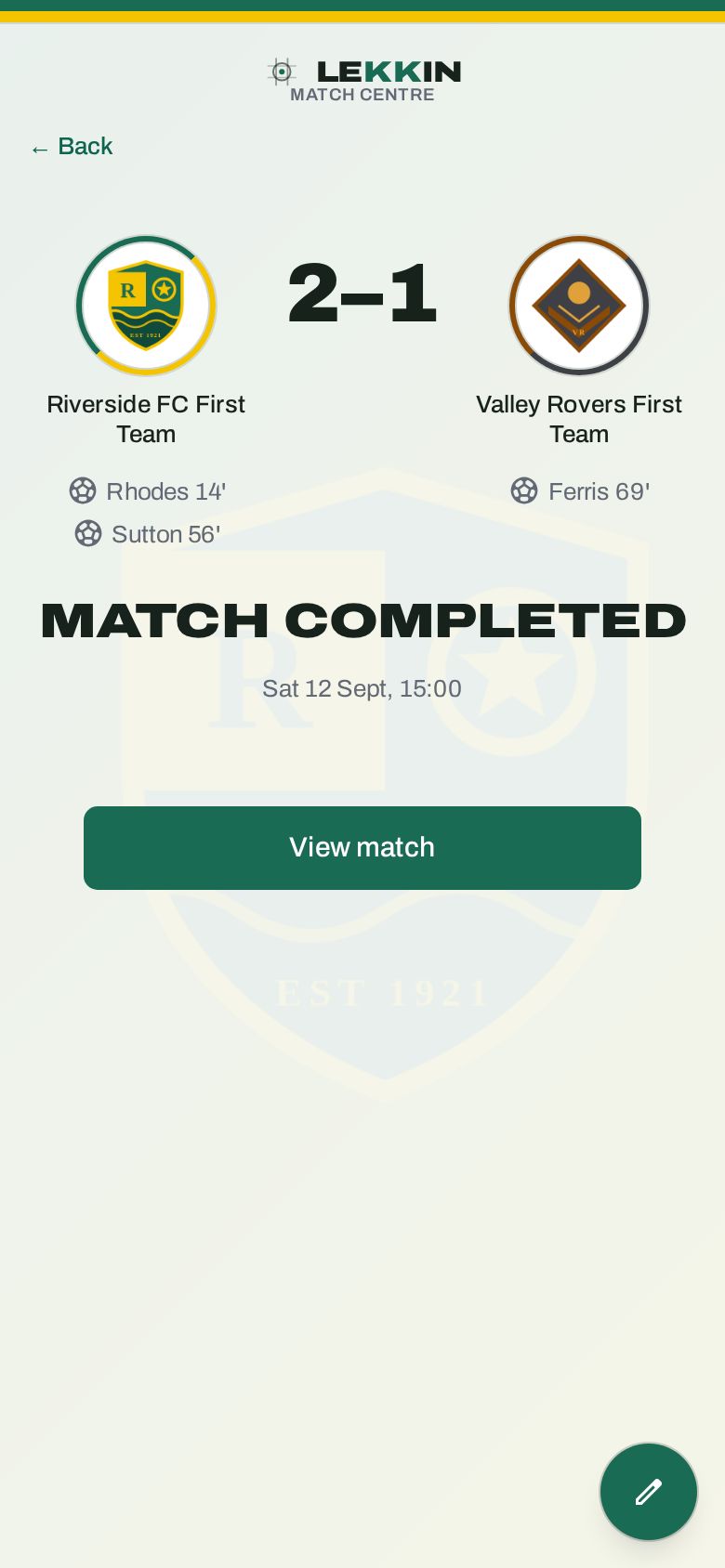
Inside a part, ← Match centre takes you back to the front page, and your phone’s back button does the same. Swipe left or right to move between steps.
Put Team Hub on your home screen. From the second match you open on a phone, the front page offers to add Team Hub to your home screen, so it opens straight to your team and works at the pitch with no signal. On Android, press Add to home screen; on an iPhone, tap the Share button, then Add to Home Screen. Not now hides it for a month.
Until kick-off, Pre-match and Match day count down to it: Kick-off in 4 days 6 hours, then hours and minutes on the day, then minutes and seconds in the last hour. The countdown shows once the game has a date and kick-off, and goes at kick-off or as soon as you start recording. A postponed or cancelled game has none.
The weather at kick-off. Under the countdown, on the match’s first page and in its Pre-match and Match day, a game in the next week shows the Met Office’s forecast for its ground at kick-off: what it’ll be like, the temperature, the chance of rain and the wind, with when it was last updated. It needs a kick-off time and a ground we’ve found on the map (a pitch your club booked for it, or the fixture’s own ground). An away ground typed in as an address has no forecast.
Before the game
- When and where: first When, the date, time and round. Where your club manages a competition’s fixtures, the manager and coaches can change them here before the game is played, and both clubs and your squad are told. Under Competition, the manager can move a game your club added to another competition your team plays in, before it’s played: its availability answers, team sheet and pitch stay, and it takes that competition’s rules, such as how long it lasts and how many play. If the team sheet no longer fits (more starters than the new competition plays a side), you’re told, so you can change it. A game against another club on LEKKIN stays where it is, as they would have to agree. A game your club added can also be deleted by the manager, before it’s played: on the match’s own page (the one with both badges), press the button in the bottom corner, choose Delete this match, then confirm. The squad is told it’s off. Where a league sets a competition’s fixtures on LEKKIN, it just shows when. Then, for a home game, the pitch (assign it, or ask your club for one). If your club doesn’t use facility booking, press Choose a pitch instead: it records which of your club’s pitches the game is on, and it’s refused if another of your games already has that pitch then. If your club adds facility booking later, the booking is already in its calendar. Chose the wrong one? Change pitch. If the pitch you want is already booked for another of your club’s matches, and your team is above theirs in the club’s pitch priority (set by a club admin in Facilities, under Venues), you’re offered Take it from that team. If your team is below theirs, you’re told the pitch is taken, and the ⓘ beside that explains the club’s pitch priority. Taking it is your choice, never automatic, and their manager and coaches are told, in the app and by email, so they can choose another pitch. For an away game there’s no pitch to pick, so type the ground’s address from what the home club sent, or, if your club has noted their ground, press Use their ground on record and change anything that’s different this time. Their contacts, ground and kit under Opponent opens your club’s notes on them: the manager can add who to ring there, their ground and the colours they wear, and the Club Hub shows the same notes. For an opponent your club added, the manager can also change its name, short name, badge and club colours (a ring round its badge), and the change shows on all your club’s games against them. If the ground has photos (the home club adds them in Facilities), they’re at the top of this step, under The ground, so you know which gate to look for. For any game, add a Meeting up note: where and when to meet, kit, lifts. Your players and their guardians see all of this on the game in the Player Hub. You can skip this step.
- Who can play: each player’s photo, their answer and any note with it, and asking the squad again. You can skip it, and if your club or team doesn’t use availability it isn’t there at all. Once the game has kicked off, or has a result, it isn’t there either: there’s nobody left to ask. See Who can play.
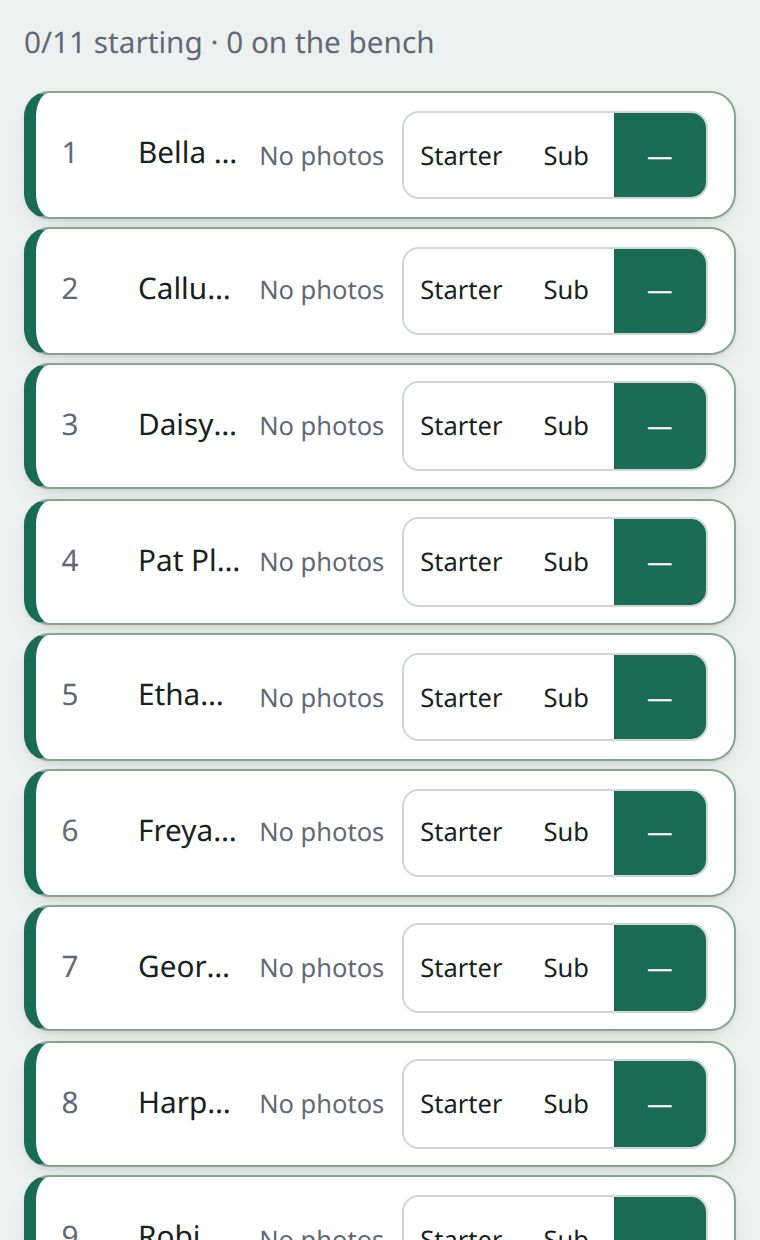
- The Team sheet is your lineup: the formation on a pitch, the bench, any suggestions from your coaches, and the staff’s chat once somebody has written in it. Tap a place on the pitch and choose the player; anyone who said they can’t play is marked Can’t play, and anyone suspended for the match Suspended; picking somebody suspended asks you to confirm first. A yellow card beside a name means one more booking would ban them. Choose the formation from the top left corner of the pitch. If the formation you play isn’t offered, choose Missing formation? at the bottom of that list to ask us for it. Change formation and back again, and everyone goes back where they were. Your league sets how many can be on the bench, 7 unless it says otherwise, and the team sheet counts them (3/7 on the bench). The ⓘ beside Bench says how many start and how many can be on the bench, and who set those numbers. Under the pitch, Captain says who leads the team out: your team’s captain if they’re starting (marked team captain), otherwise the vice-captain if they’re starting. Choose any other starter for this match only, and they wear the C on the pitch; your team’s captain doesn’t change. Choosing the team’s captain again goes back to them.
Shirt numbers for one match. Somebody borrowing a shirt? Press Team sheet (the round button), then Shirt numbers. Everyone on the team sheet is listed with their squad number: type the number they’re wearing today and save the team. It shows on the pitch and the bench, and goals, cards and substitutions show it too. Leave a box empty and they wear their squad number. Two players can’t wear the same number: it names them and won’t save until one changes. Copying a lineup from another match brings the players, not that day’s borrowed shirts. 4. Copy in the top right corner of the pitch copies the team from one of your last five games, so you only change what’s different. Anyone who has left the squad is left out, and you’re told who. Nothing is saved until you press Save the team, from the Team sheet button in the bottom corner. 5. Everything else is in that Team sheet button too: Bring in a player for this match, Message the staff (the staff’s chat appears under the team once somebody has written; it closes two weeks after the match, and Lock and archive chat closes it sooner, while Reopen the chat gives it another two weeks), and Complete pre-match when you’re done. With nobody picked, it checks you want to carry on without a lineup. Confirming takes you to Match day. Saving the team before the game also asks Have you finished the team sheet?: Complete pre-match does the same there and then, and Not yet keeps you on the pitch, with Complete pre-match first in the Team sheet button. You can still change the team before kick-off either way.
The team sheet is always the pitch. With no signal at the ground you pick the team as usual: it’s saved on your phone and sent when you’re back on (the staff’s chat, coaches’ suggestions and Copy wait for signal). Once the match has kicked off, the pitch shows who’s on now, with substitutes in the places of those they replaced; you can still add a late arrival to the bench, and changes on the pitch are substitutions, recorded as usual. On a played match, unlock it to correct the team sheet. Anyone in a goal, card or substitution you’ve recorded stays where they are: change that event first.
Players are shown by surname throughout the match centre. Where two players in the squad share a surname, just enough of the first name is added to tell them apart, like De. Smith and Da. Smith. A player with a display name is shown by it, as it is.
Recording the match
A result is always worked out from the goals you record. There’s no box to type a score into, so the score and the goals behind it can’t disagree. Choose how you’re recording it:
- Record live: as it happens. Say when it kicked off: Now, the scheduled time, or another time. The scheduled time isn’t offered more than an hour after it, and nor is any time more than an hour ago, because by then you’re not recording live. The match clock runs, and the timeline (half-time, the second half, extra time, penalties, full time) is under the clock.
When time’s up, it tells you. Once a half’s time is up, a big End the first half button appears (in your sport’s words: End the third quarter in netball), ringed so you can’t miss it. You can still record anything that happens in added time; it only reminds you. At half-time, a big Start the second half button starts the next one, and it rings once the break’s time is up: 15 minutes at football’s half-time, less before and during extra time and before penalties. In a level cup tie at full time, it offers Start extra time and Start penalties. Each time, the phone buzzes once (on Android) and beeps (on any phone), and the screen stays on while the match is on. To turn the buzz and beep off on this phone, open the timeline and untick Buzz and beep when a half or a break is up.
Kicked off earlier than you pressed it? Open the timeline and choose Correct a kick-off time…, then the half and the time it really kicked off. The clock moves to match; goals, cards and substitutions keep the minutes you gave them. It won’t take a time after that half ended, or before the half before it ended.
- Record after the match: from your notes, once it’s over. If your club or team has switched live recording off, this is the only choice. Say how far it went: the full length (90 mins, or your format’s), Extra time, or Penalties (and whether extra time came first). There’s no clock to run: you put each event in with its minute, and the half is worked out from the minute.
Everything you do is in the + in the bottom corner: Record event for goals, cards and substitutions, and, after the match, Add a penalty shoot-out (in a cup) and Finish. If you said it went to Penalties, the + offers only Complete the penalty shootout, which opens the same shoot-out recorder as a live match; finishing the shoot-out works out the result. It’s built for one thumb on a cold touchline, with big targets.
- The minute is filled in from the clock when you’re recording live.
- Goal asks what kind: a Goal, a Penalty (scored from the spot during the match) or an Own goal. For an own goal, choose the team it counts for, then who put it in their own net.
- Only players named on the team sheet are listed. A goal, or the player going off, lists only who was on the pitch at that minute. A card lists the bench as well, and anyone already subbed off, because they can be booked too. Nobody sent off is listed for anything. If nobody was named on the team sheet, nobody is listed and the event is recorded without a player.
- An opposition player can be named: type their name or shirt number. It’s only a name on the event, linked to nobody. Once you’ve named one, they’re offered in a list next time, with Someone new… for anyone else. The rules hold for the players you name: one you recorded going off can’t score afterwards; one sent off (a red card, or a second yellow) can’t be part of anything afterwards, so there’s no third yellow; and one who came on can’t have scored before. A player you haven’t named is unknown, so anything goes.
- A red card for one of yours asks What for?: denying an obvious goal-scoring opportunity, offensive language, serious foul play, violent conduct or spitting. It can’t be recorded without an answer, because the suspension is worked out from it (see Your squad). A second yellow doesn’t ask: it’s a second caution.
- An opposition substitution asks for who went off and who came on, both optional.
- Substitutions list who can go off (on the pitch) and who can come on (on the bench, and not used yet).
- Injured, with no substitutes left? Record a Sub, choose who’s going off, and choose Nobody — off injured (the last option) as who comes on. They leave the pitch with nobody replacing them. It isn’t counted as a substitution, and they can’t come back on.
- Get something wrong? Tap the event to change it, or swipe it left to remove it (or Remove in the event you’ve opened). Undo on the message that appears brings back one you removed by mistake.
A penalty shoot-out
Live, choose Penalties from the timeline after extra time. Recording afterwards, choose Add a penalty shoot-out from the +.
- Say who took the first kick. The referee decides this with a coin toss; you record what happened.
- The kicks then alternate. For each one, choose who took it (one of yours, or a name for theirs, picked from the list or typed), then Scored or Missed. Your list shows only players on the pitch at the end of the match, never anyone sent off, subbed off or off injured. Nobody takes a second penalty until as many of yours have been taken as you have players on the pitch; then everyone, the goalkeeper included, can take another.
- Each side’s kicks show as marks from the start, one for each penalty the competition plays (five in football, unless the competition sets its own number): green with a tick for scored, red with a cross for missed, empty for not taken yet. In sudden death both rows grow together.
- Undo last kick takes back a mistake.
- Once a team has won (when nothing left to kick could change it), the kicks stop and Finish shootout records the result. Being ahead isn’t enough while the other side could still catch up.
Started it by mistake? Before any kick is taken, Cancel the shoot-out sits where Undo last kick goes. If kicks are in, undo them one by one; once the last one is gone, Cancel comes back. The match before it stays as it was.
If you lose signal
Keep going. Everything you record is kept on your phone and sent when you’re back on. You don’t need to remember what you tapped, and you don’t need to stay on the touchline hunting for a bar of 4G.
When it reconnects it catches up in order, so the timeline is right even though it arrived late.
Opening Team Hub with no signal. If you’ve used Team Hub on this phone in the last 30 days, it opens with no signal too, signed in as you, and the round mark in the bottom corner says you’re offline. What it can show is what it already has: each time you open Team Hub with signal, it saves your next two games on the phone, with their team sheets and your squad, ready to record at the pitch. A game further ahead is saved once you open it with signal. Your squad (People → Squad) works too, from the copy saved when you last opened it, without photos and with nothing to add until you’re back on. Any other page says You’re offline and opens properly once the signal is back.
If Team Hub has never been opened on the phone with signal, it can’t sign you in with no signal, and says so. Signing out of Team Hub clears everything it kept on the phone, so a shared phone doesn’t keep your team for the next person.
The result
When the game is over, Finish it: from the timeline when you’re recording live, or from the + when you’re recording afterwards. The score is taken from the goals you recorded, so there’s nothing to type twice. You’re then asked Was anyone injured? Anyone who went off injured with nobody coming on is listed first, then anyone substituted off, then the rest of the team sheet. Tick anyone who was hurt, say what it is, and press Record injury; they’re marked injured with no return date yet, which you can change on their page (see Your squad). Nobody hurt? Just carry on.
Then Who came, where everyone on the team sheet is already marked as having come on time: tap Late or No show for anyone who wasn’t.
Correcting a result means correcting its goals and cards, in the match centre, not on the game’s card. Open the match and choose Edit match from the button in the bottom corner: its goals and cards are there to change straight away. Tap one to change it, or add one from the +, then choose Update the result from the same +. If that changes the score, you’re told the old and new score before you save it. If you leave without updating, the match’s Summary says the result no longer matches its goals and cards, with an Update the result button. A score typed in before results were worked out is corrected the same way: Edit match asks how far the game went, then you add what happened.
Don’t record matches live? Record them after the match instead: open the game from Matches once it has been played. If your team never records live, its manager can switch live recording off, and then that’s the only choice. See Hiding what your team doesn’t use.
Reminders before, on and after each match. The team’s managers are emailed, and told in the app, three times about each match. A team with no manager has its club’s admins reminded instead. Each reminder opens its part of the match centre:
- Set up the match: 7 days before, if the match details, asking who can play or the team sheet are still to do. It says which.
- Match day: on the morning of the match, or 3 hours before an early kick-off.
- Finish the match: the day after, if nobody has recorded the result.
They come at 9am. To change how many days before and after (1 to 14), go to Notification settings, under Match reminders. Your days apply to every team you run. Each reminder has its own Email switch there too, under Matches and training. A match that moves is reminded about again for its new date, and one that’s called off isn’t.
Once a game has a result it moves from Fixtures to Results, under Matches. That’s where you answer the other club if they disagree (Contest). To correct a score, open the match: see above.
The other club can disagree. A result is trusted the moment it goes in — nobody has to approve it before it counts — but if the opposition recorded something different, both of you are told and it’s flagged rather than one version quietly winning. That’s deliberate: waiting for approval would mean no league table until the slowest secretary got round to it.
Player of the match
Once a game has kicked off, your team decides its player of the match. Your club chooses how, and your team can choose differently under Configure → Settings. The ⓘ next to it, on that tab and in Player of the match, says which way applies to your team now and whose choice it is:
- The team’s staff choose. Press Player of the match on the game under Matches, or on the match’s Summary, and pick one of your own players, with a line about why if you like (“Two assists and ran the midfield”). When you record a result from the fixture list, it asks you straight away.
- The squad votes. Press Player of the match, tick who’s nominated (everyone who played is ticked to start with, and you need at least two), and start the vote. Everyone in the match-day squad is asked to vote in their Player Hub, by email and on their phone; a guardian votes for the player they look after. Nobody can vote for themselves, and they can change their vote until it closes.
- Anyone can vote. The same, but the vote is on a public page. Copy its link to share it with supporters, on your club’s social media or a poster in the clubhouse. One vote per phone or computer. Only clubs that have turned on public voting can use it.
How long a vote lasts. 24 hours unless your club or team has chosen otherwise. While it’s open you can see how many have voted, but not who for. You can stop it at any time, or name someone yourself instead.
When it closes, the player with the most votes is player of the match. If it’s a tie, you’re asked to choose between the players level at the top; if nobody has chosen after 48 hours, they’re joint players of the match. If nobody voted, you’re told, and you can name someone yourself or run another vote.
- Who you can choose or nominate. Whoever was in your lineup for the game. If you didn’t pick a lineup, your squad and anyone you brought in for the game.
- Who’s told. The player of the match gets a congratulations message, through their guardians where they have one, and the rest of your squad hears who it was, in their inbox. After a vote, the team’s staff are told too.
- Who sees it. Your club: it shows on the game in the Team Hub, the Club Hub and the player’s own app, and on the player’s page in your squad. If your club has turned on public voting, the winner also shows on the public page and on your website widget, with a youth player shown by first name and surname initial. The other team never sees it in the apps.
- Changed your mind? Open it again and choose someone else, and the squad is told again. Changing only the “why” tells nobody. You can also take it away.
On your club’s website. If your club has turned on public voting, Player of the match on a game has a Website widget section with a short piece of code. Paste it into the match’s page on your website: it shows the vote while one is open, “Player of the match will be named soon” before then, and the winner afterwards.
Managers, coaches and the club’s team management can name one and run a vote. A club secretary can’t.
If it’s called off
Fixtures aren’t called off from the Team Hub. Whoever runs the fixture list does it: usually your club’s admins, or the league, for a competition it runs on LEKKIN itself. When a game is called off, the squad’s players, or their guardians, are told it’s off.